
When a mailbox is full, new emails bounce back to the sender and never reach you. Freeing up space, or giving the mailbox more, fixes it straight away.
Check how full it is
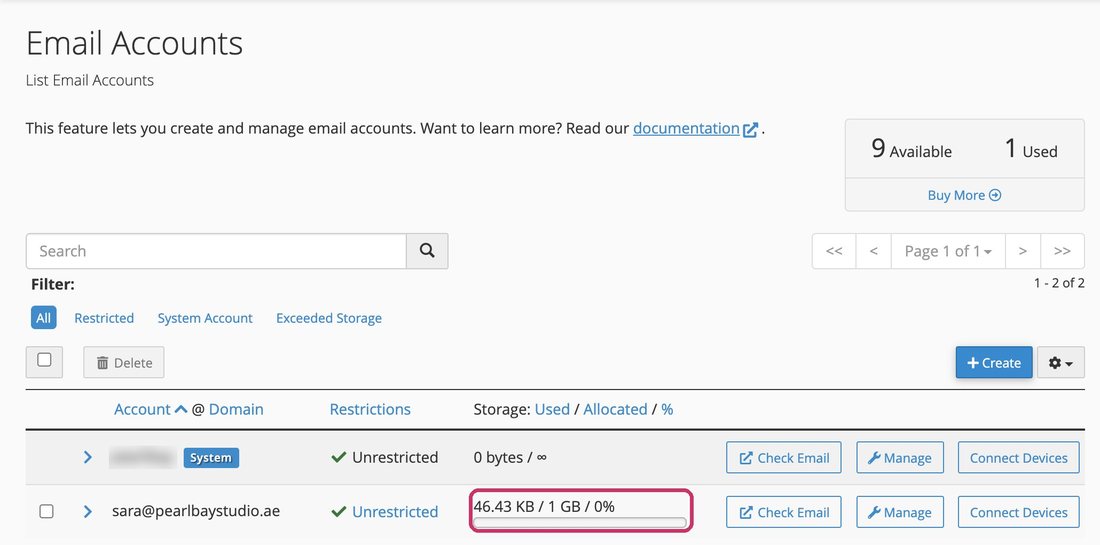
Log in to cPanel, then go to Email › Email Accounts. Each mailbox shows how much it’s using out of its limit. New mailboxes get 1 GB unless you choose more.
Fix 1: clear out old email
- Empty Trash and Junk
Deleted emails still use space until Trash is emptied. Empty Trash and Junk in webmail or your email app.
- Delete big or old emails
In webmail, sort by size and delete large emails you no longer need, or old ones you’ve saved elsewhere. Sent emails with attachments are often the biggest.
- Or clear it in bulk
In cPanel, go to Email › Email Disk Usage, choose the mailbox under Account, and delete messages from a folder by age or size.
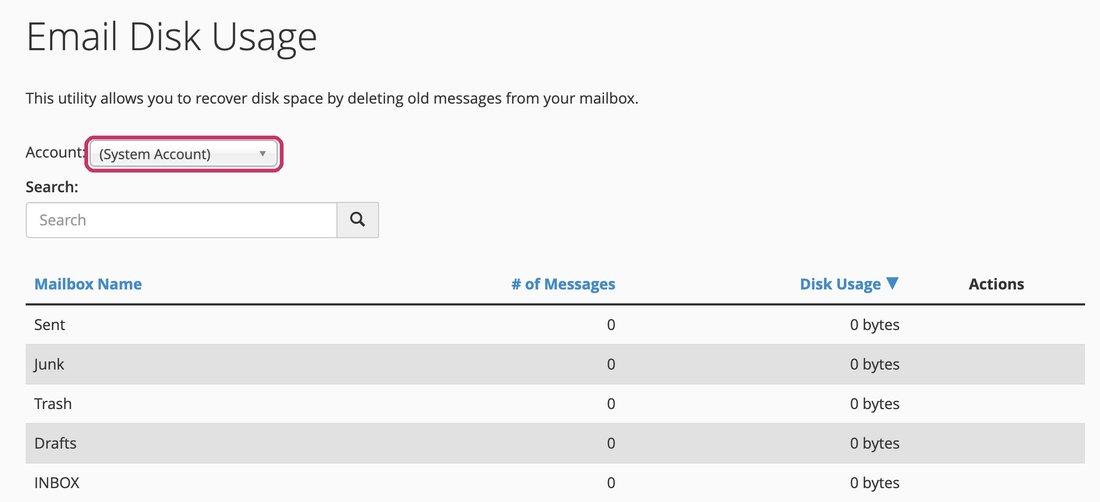
Email Disk Usage: choose the mailbox, then clear a folder
Your phone, computer and webmail all show the same mailbox, so anything you delete is gone from all of them. Download anything you want to keep first.
Fix 2: give the mailbox more space
- Open the mailbox
In Email Accounts, click Manage next to the mailbox.
- Raise its storage
Under Allocated Storage Space, type a bigger number, or choose the largest option shown (your plan’s limit). Then click Update Email Settings.
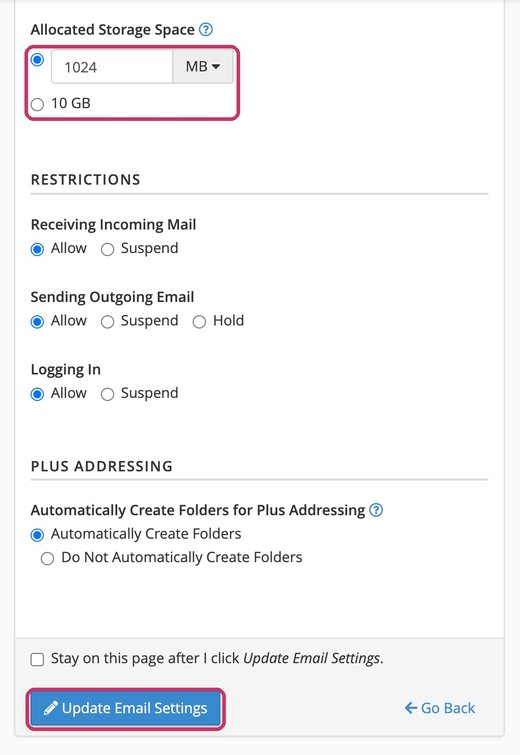
Allocated Storage Space and Update Email Settings
Mailbox space comes out of your hosting plan’s total. If the whole plan is full, clear out space or upgrade: see Check your disk space and limits.
Common questions
Someone says my email bounced with “mailbox full” or “quota exceeded”.
That’s this. Free up space as above, then ask them to send it again. Bounced emails aren’t delivered later.
I deleted emails but it still says full.
Empty Trash, then give it a few minutes to update.