
Add your Tasjeel.ae mailbox to the Mail app on your Mac. It takes about three minutes.
Before you start
You’ll need your email address, your mailbox password and your server name. See Email settings: server names and ports.
Add your mailbox
- Open Add Account
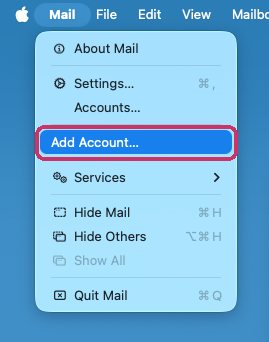
Open Mail. If it’s your first account, the Add Account window opens by itself. Otherwise, click Mail in the menu bar at the top of the screen, then Add Account….
Mail › Add Account… - Type your email, then choose from a list
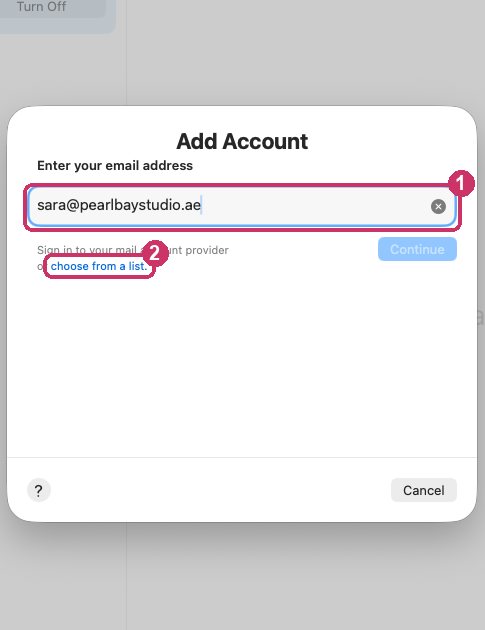
Type your full email address. Then click choose from a list underneath it, not Continue.
Your email address, then choose from a list - Choose Other Mail Account
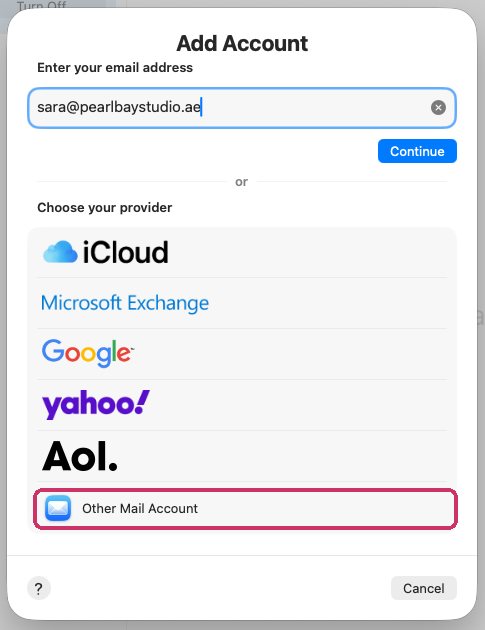
At the bottom of the list, click Other Mail Account, then Continue.
Other Mail Account - Fill in your details
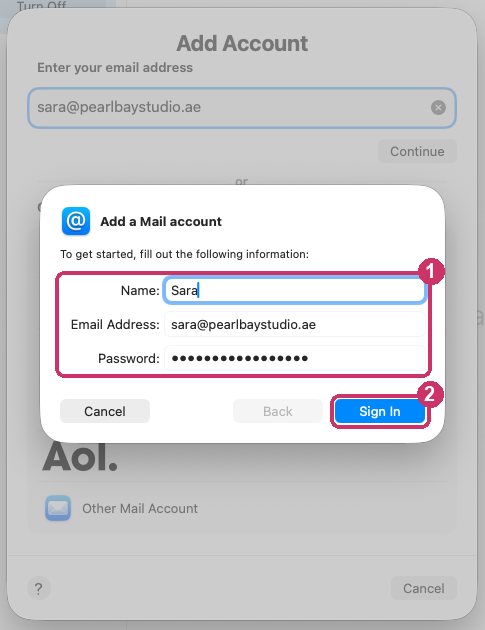
Type your name (as people will see it on your emails), your email address and your mailbox password. Click Sign In.
Name, email address and password, then Sign In - Fill in the servers
Mail shows more boxes. Set Account Type to IMAP, and type your server name in Incoming Mail Server and Outgoing Mail Server. Leave Username as Automatic. Then click Sign In.
Server name or mail.yourdomain.ae?Use
mail.yourdomain.aeonly if your domain points to your Tasjeel.ae hosting. Use your server name (such asfinyaan.tasjeel.ae) if any of these apply: your website is hosted somewhere else (such as Shopify or Wix) · your domain uses Cloudflare · your DNS is managed outside Tasjeel.ae · your app says it can’t verify the server or its certificate. Whichever you choose, use the same one for incoming and outgoing.Ignore the red message on this screen.Mail always shows “Unable to verify account name or password” in red here, whatever you type. It isn’t an error. Fill in the boxes and click Sign In. Only if Mail stays on this screen after you click Sign In has something actually failed: then check your password, and try your server name (such as finyaan.tasjeel.ae) for both servers.
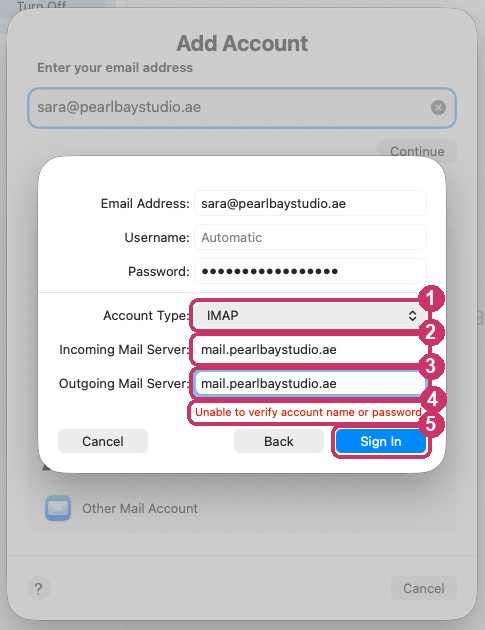
Account Type IMAP, both servers, then Sign In. The red message always shows here; ignore it - Choose Mail and finish
Tick Mail. You can untick Notes. Click Done.
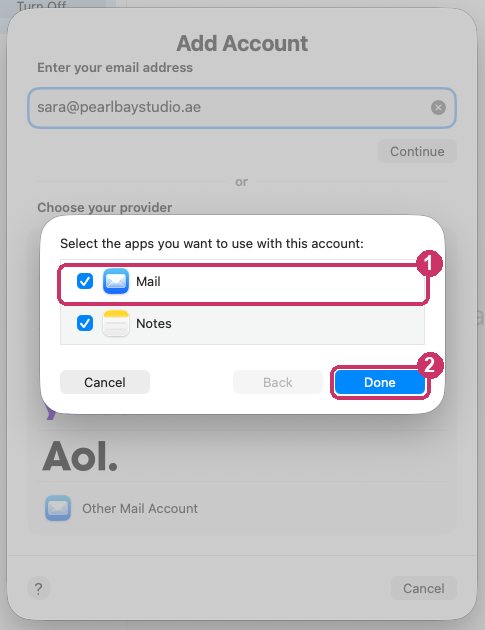
Tick Mail, then Done - Check your inbox
Your mailbox appears in the list on the left, under its own name. Send yourself a test email to check sending works.
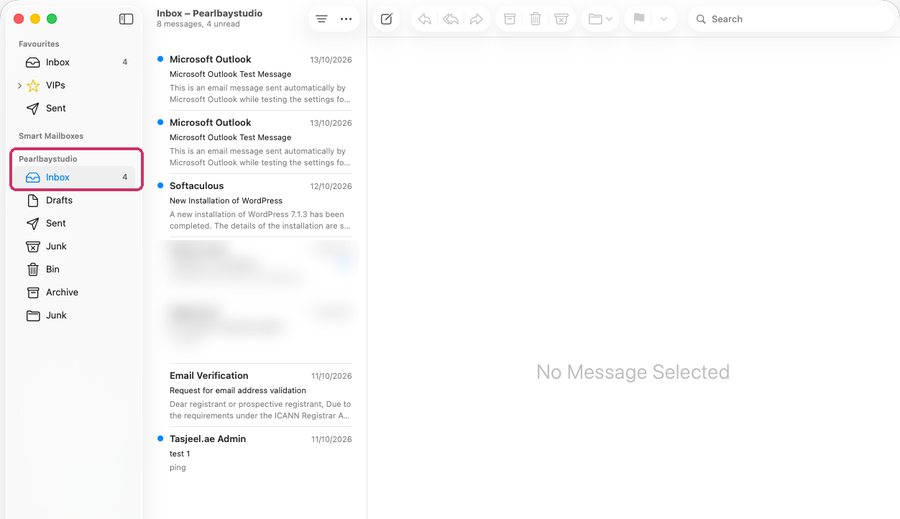
Your new mailbox in Mail
Check your settings later
Click Mail › Settings… › Accounts, choose your account, then Server Settings. To see the ports, untick Automatically manage connection settings.
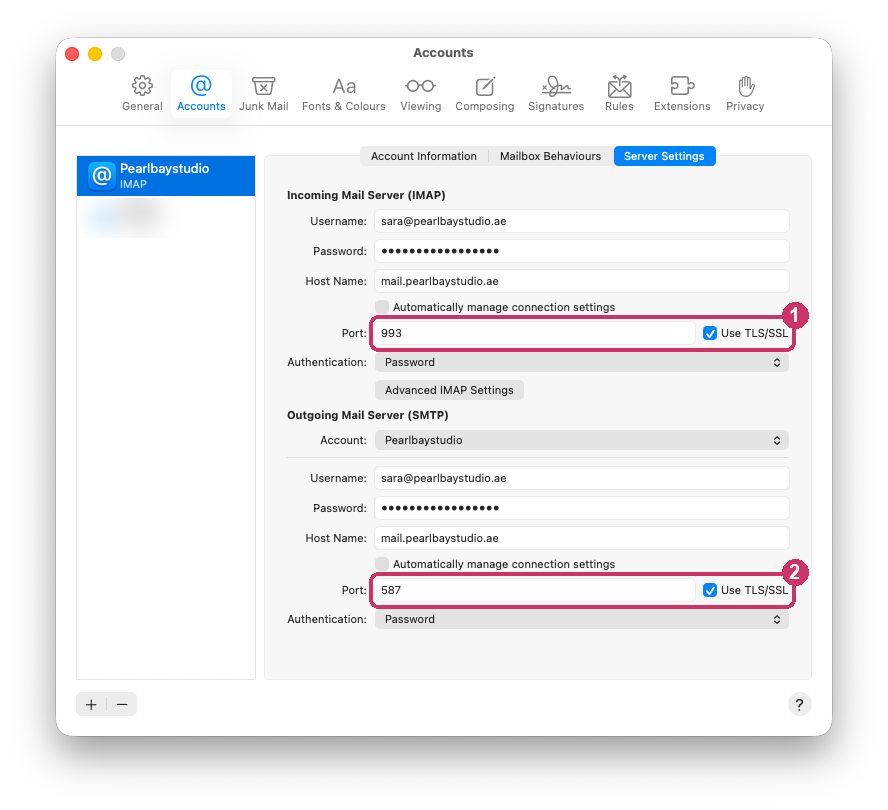
Mail sometimes picks port 143 by itself. That’s fine as long as Use TLS/SSL is ticked. Port 993 works too. For sending, 587 or 465 both work.
Common questions
I clicked Sign In and Mail didn’t move on.
Now something has failed. Check the password carefully and check both servers. Then try your server name, such as finyaan.tasjeel.ae, instead of mail.yourdomain.ae. Still stuck? Set a new mailbox password in cPanel. See Change or reset an email password.
Mail keeps asking for my password.
The saved password is wrong or out of date, often after it was changed in cPanel. Open Mail › Settings… › Accounts › Server Settings and type the new password in both places.