
Like the Gmail look? You can read and send your Tasjeel.ae email in the Gmail app on your phone, next to any Gmail accounts you already have.
This works in the Gmail app on your phone. Gmail on a computer no longer lets you add other email accounts, and Google is switching off the ones already added in January 2027. On a computer, use webmail or a mail app instead.
Before you start
You’ll need your email address, your mailbox password and your server name. See Email settings: server names and ports.
Add your mailbox
- Open the Gmail app and add an account
Tap your profile picture at the top right, then Add another account. If you see the screen below, tap Add another email address.
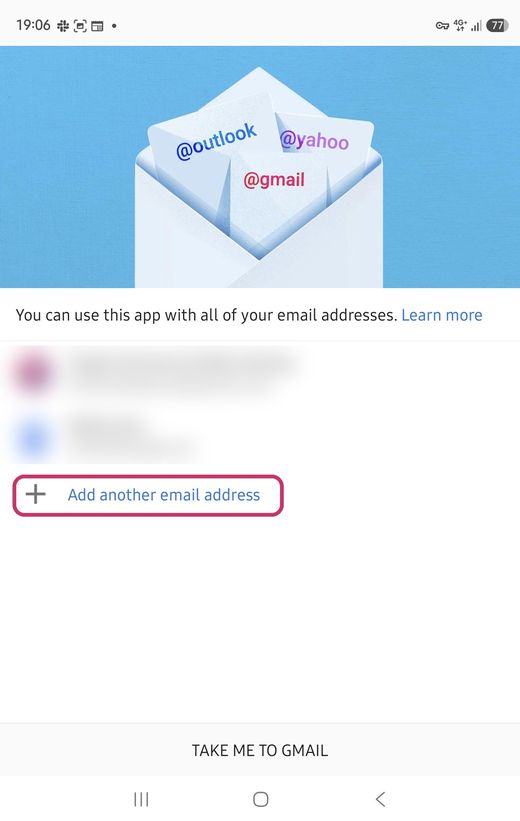
Tap Add another email address - Tap Other
Under Set up an email account, tap Other.
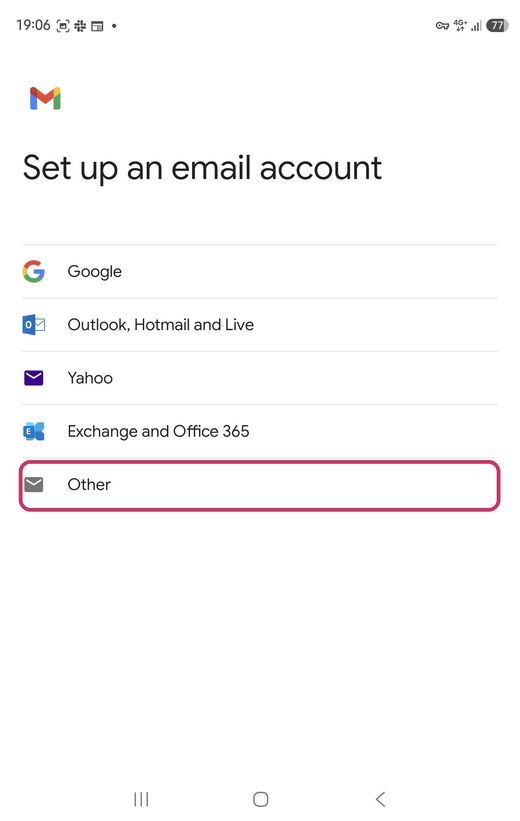
Tap Other - Type your email, then tap Manual setup
Enter your full email address and tap Manual setup, not Next.
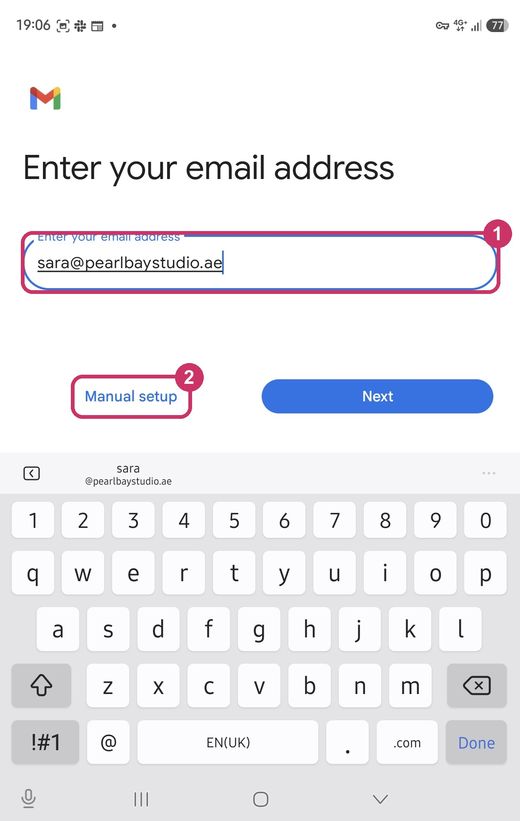
Your email address, then Manual setup - Choose Personal (IMAP)
Gmail asks where the account stores emails. Tap Personal (IMAP).
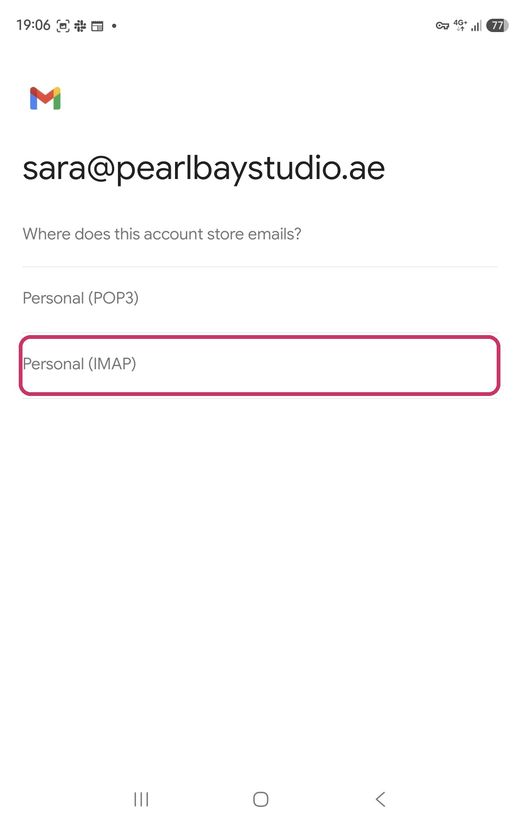
Choose Personal (IMAP) - Type your password
Enter your mailbox password and tap Next.
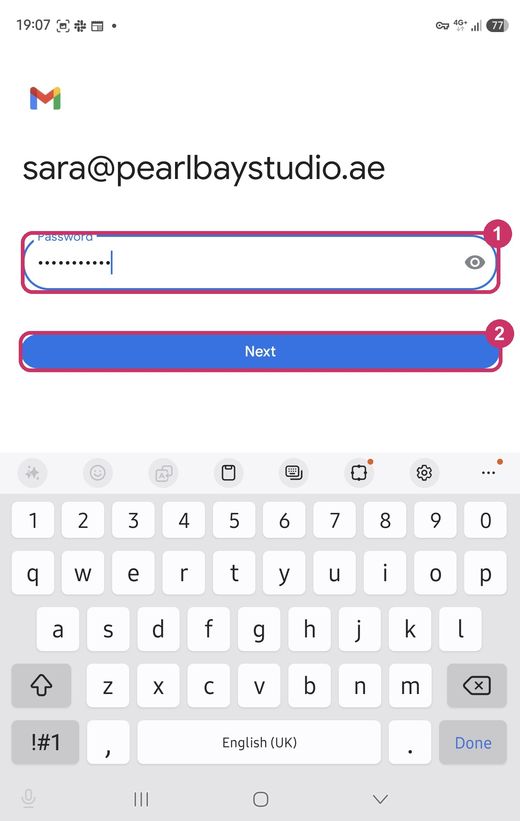
Your mailbox password - Fill in the incoming server
Check Username is your full email address. In Server, type your server name or
mail.yourdomain.ae, then tap Next.Server name or mail.yourdomain.ae?Use
mail.yourdomain.aeonly if your domain points to your Tasjeel.ae hosting. Use your server name (such asfinyaan.tasjeel.ae) if any of these apply: your website is hosted somewhere else (such as Shopify or Wix) · your domain uses Cloudflare · your DNS is managed outside Tasjeel.ae · your app says it can’t verify the server or its certificate. Whichever you choose, use the same one for incoming and outgoing.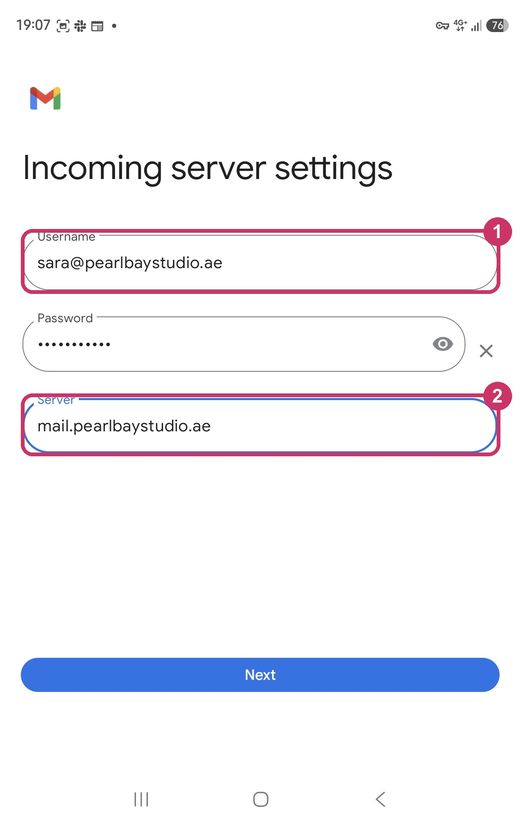
Username and incoming server - Fill in the outgoing server
Leave Require sign-in on. Check the username is your full email address, type the same server name in SMTP server and tap Next.
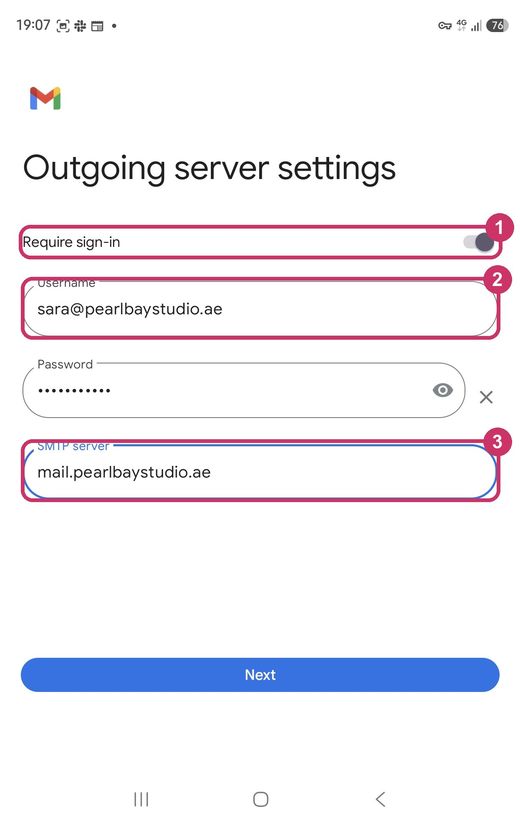
Require sign-in, username and SMTP server - Keep the account options
The defaults suit most people. Tap Next.
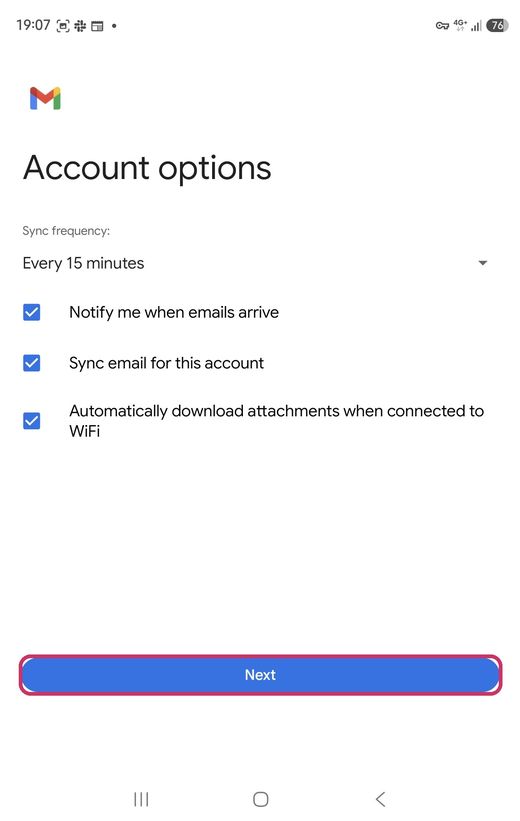
Account options: tap Next - Add your name
Type the name people should see on your emails in Your name, then tap Next.
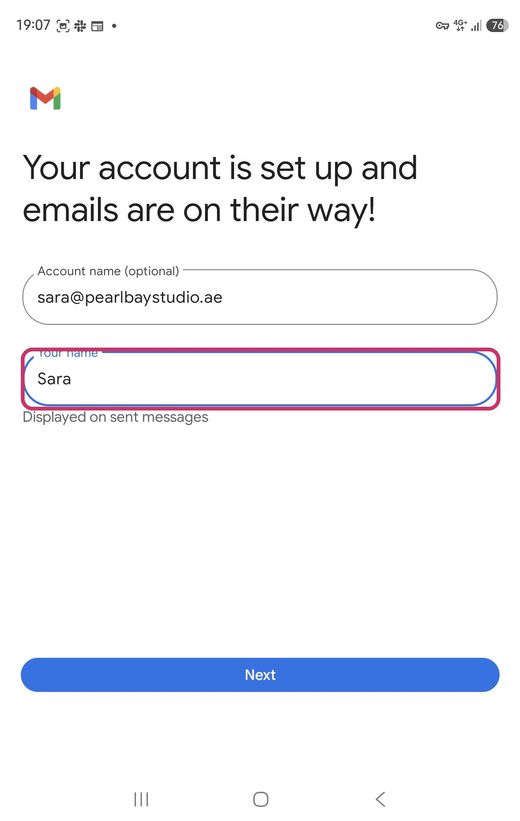
Your name, shown on emails you send
Gmail finds the right ports and security by itself, so you only need your email, password and server name.
Switch between accounts
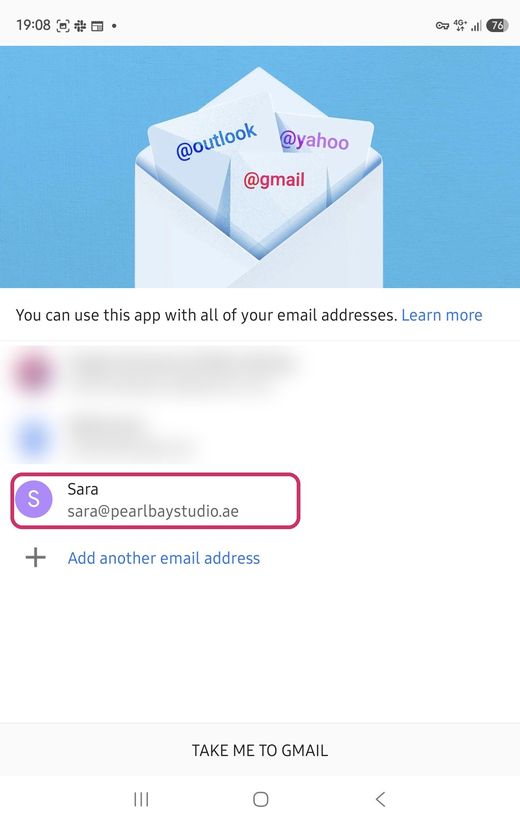
Tap your profile picture at the top right and choose the account. Your Tasjeel.ae mailbox is listed with your other accounts.
Common questions
It says it can’t connect to the server, or shows a certificate warning.
Use your server name, such as finyaan.tasjeel.ae, instead of mail.yourdomain.ae, for both servers. See Email settings: server names and ports.
It says my username or password is wrong.
Check the username is your full email address, and retype the password. If you’re still stuck, set a new mailbox password in cPanel. See Change or reset an email password.
Will my emails also be in Gmail on my computer?
No. They stay in your Tasjeel.ae mailbox and show in the Gmail app on your phone. On a computer, use webmail or a mail app.