
You can add a new email address, such as info@ or sales@ your domain, in under a minute from cPanel. Here’s how.
Create a new mailbox
- Open Email Accounts
Log in to cPanel, then go to Email › Email Accounts. You can also click Email Accounts under Quick Shortcuts on your hosting plan’s page in the client area. The top of the page shows how many mailboxes your plan has left.
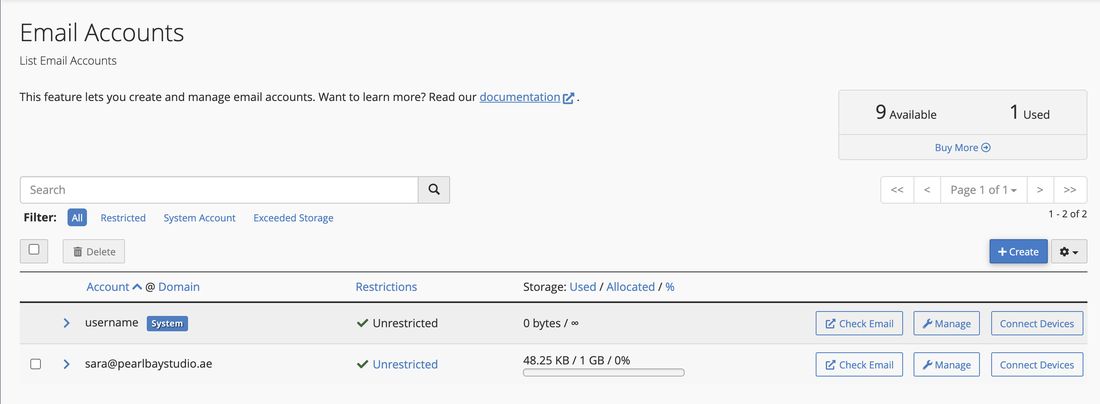
Email Accounts in cPanel - Click Create
Click + Create.
- Fill in the form
Pick the domain if you have more than one, then type the part before the @ in Username, such as
info. Under Password, type a strong password or click Generate.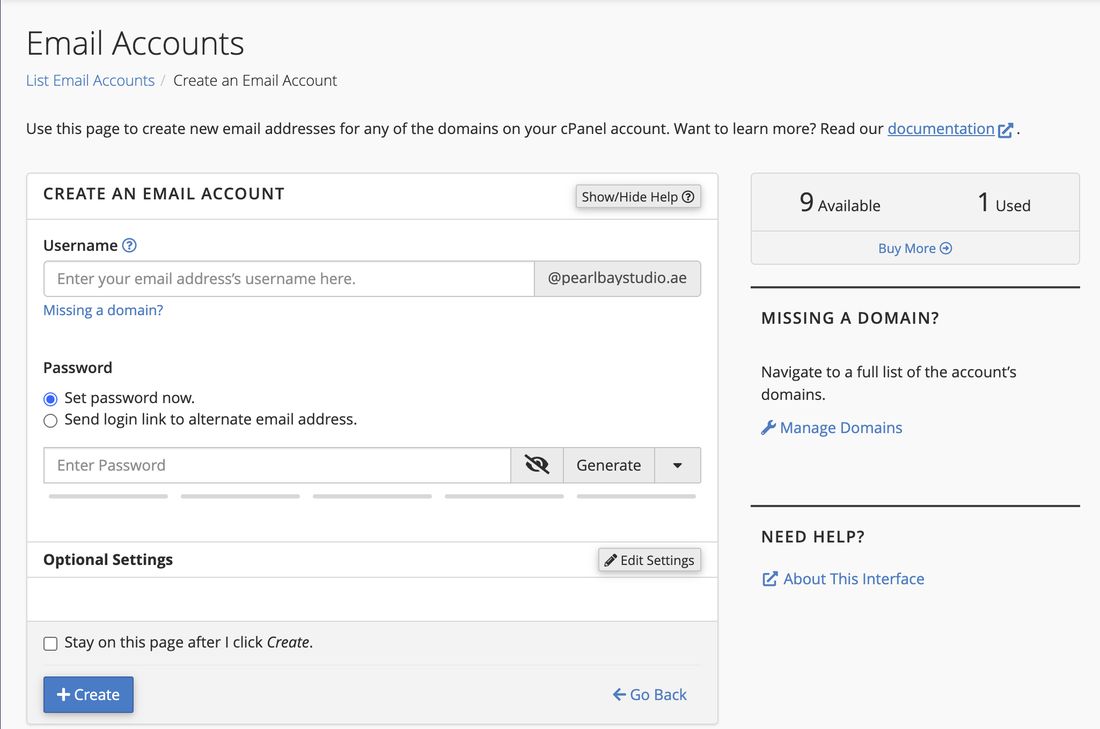
The Create an Email Account form - Create it
Click + Create. The new mailbox is ready straight away. Set it up on your phone or computer with Email settings: server names and ports.
Each new mailbox gets 1 GB unless you change Storage Space under Optional Settings before you click Create. Its space comes out of your plan’s total.
Need a new password for a mailbox later? See Change or reset an email password.