
Every mailbox with us has a spam filter switched on. Here’s how to find spam it caught, make it stricter, always allow or always block a sender, and when to ask for more protection.
Where spam goes
Email that looks like spam goes to the Spam folder in your mailbox, not your inbox. Check it now and then for anything important, and move it back to your inbox if it’s not spam.
Change your spam settings
- Open Spam Filters
Log in to cPanel, then go to Email › Spam Filters.
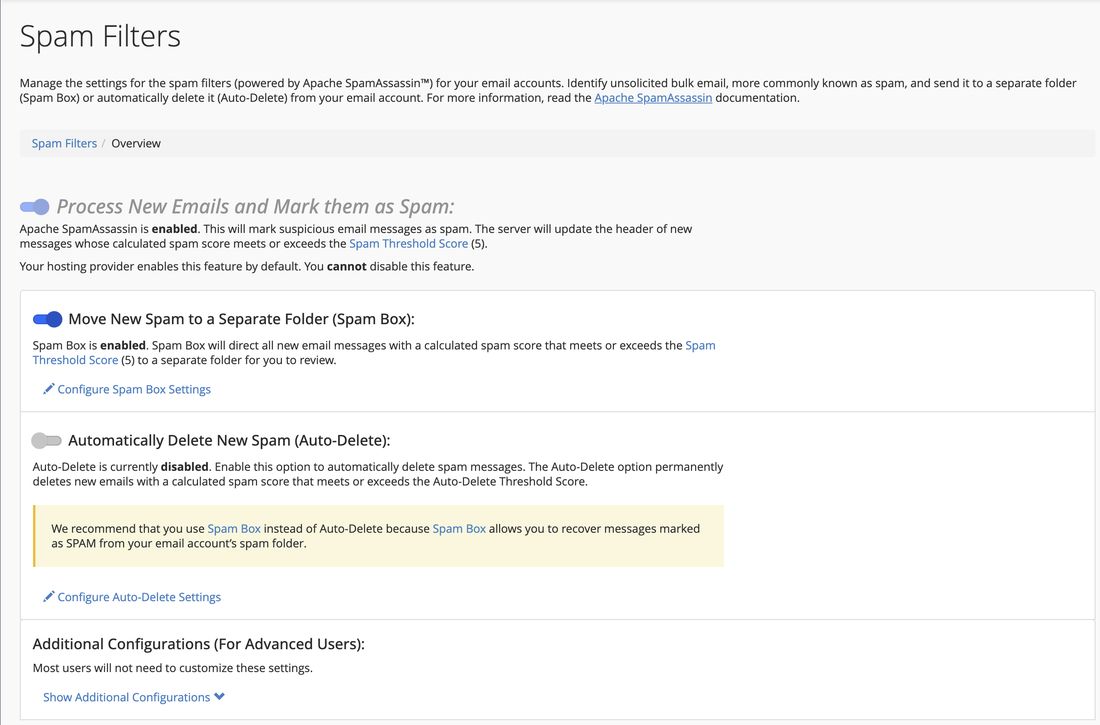
Spam Filters in cPanel, with Spam Box on - Make it stricter or more relaxed
Under Move New Spam to a Separate Folder (Spam Box), click Configure Spam Box Settings. A lower score catches more spam but may catch real email too. 5 is the standard setting.
- Always allow or always block a sender
Click Show Additional Configurations. Add trusted senders to the Whitelist so they’re never marked as spam, and unwanted ones to the Blacklist.
Auto-Delete removes spam for good, so a real email caught by mistake is gone. Spam Box keeps it where you can find it.
Block one kind of email
For anything more specific, such as every email with a certain subject, use Email › Email Filters, click Manage Filters next to the mailbox and create a rule.
Contact us and we’ll check what’s getting through and adjust your filter for you.
Stronger protection: SpamExperts
For the strongest protection, add SpamExperts E-mail Protection to your hosting. It checks every email before it reaches your mailbox and stops spam and viruses there. To add it, log in to your client area, go to Services › My Services, click Manage next to your hosting plan, then under Addons and Extras choose Spamexperts E-mail Protection and click Purchase and Activate.