
Forgotten your cPanel password, or want a new one? You set it from your Tasjeel.ae client area. You don’t need the old password.
Set a new cPanel password
- Log in to your client area
Go to my.tasjeel.ae and log in with your client-area email and password. These are not your cPanel details. Forgotten them? See Reset your client-area password.
- Go to your hosting plan
In the top menu, click Services › My Services. Find the hosting plan for your domain and click Manage.
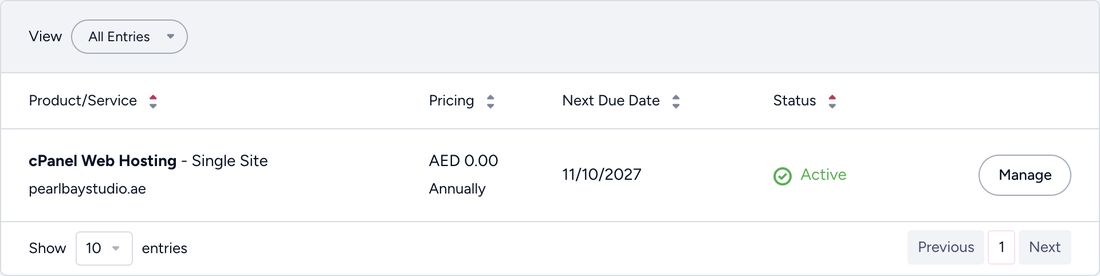
Click Manage next to your hosting plan - Click Change cPanel Password
In the menu on the left, under Actions, click Change cPanel Password. The password form opens on the right.
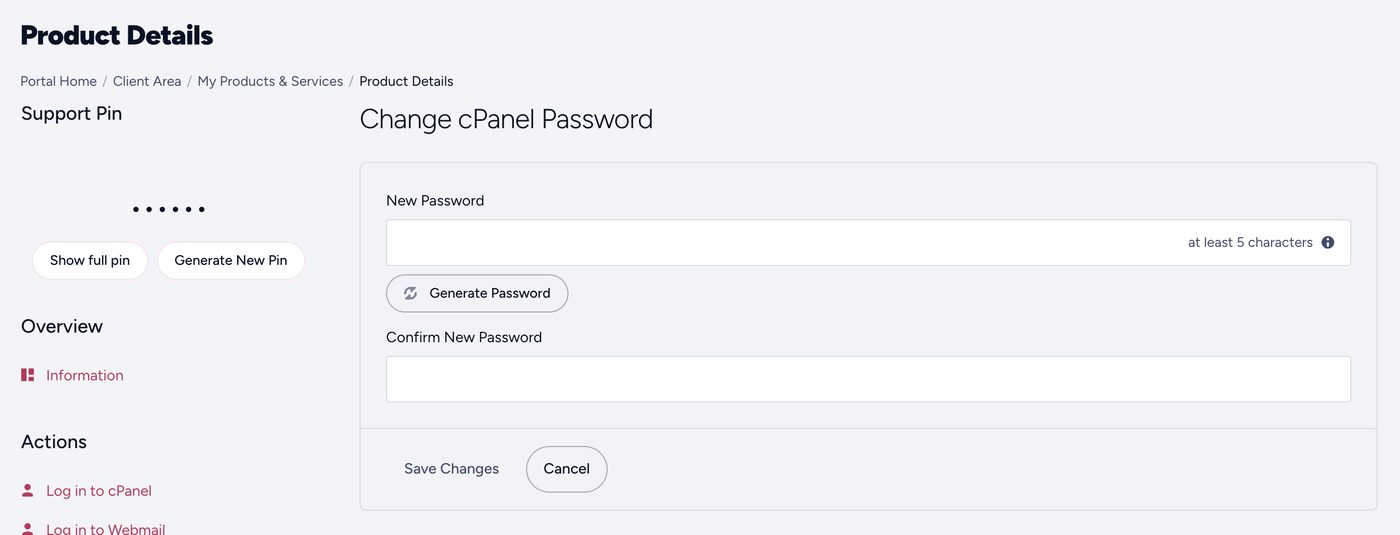
The Change cPanel Password form - Type your new password twice
Type it in New Password and again in Confirm New Password. Use at least 12 characters, or click Generate Password for a strong one. Save it somewhere safe, such as a password manager.
- Save
Click Save Changes. Your new password works straight away.
Your client area, cPanel and each mailbox have separate passwords. Changing your cPanel password doesn’t change your email passwords, so your phone and computer keep getting email.
Common questions
Do I need my new password to get into cPanel?
Not from the client area: Log in to cPanel on your hosting plan’s page takes you straight in. You need it when you log in directly, for example at yourdomain.ae/cpanel. See Log in to cPanel and find your username.
I have more than one hosting plan.
Each plan has its own cPanel and its own password. Pick the plan that shows the right domain in step 2.
I want to change an email password, not cPanel.
Mailbox passwords are changed in cPanel. See Change or reset an email password.
I can’t log in to the client area either.
Reset that first: see Reset your client-area password.