
A redirect sends visitors from one address to another, for example from an old page to its new home, or from a second domain to your main website.
Permanent or temporary?
Permanent (301)
The old address has moved for good. Google moves the old page’s ranking to the new one.
Temporary (302)
For a short time only, such as a sale page. Google keeps the old address.
Add a redirect in cPanel
- Open Redirects
Log in to cPanel, then go to Domains › Redirects.
- Fill in the form
Choose the type, pick your domain, then type the old path after the slash (leave it empty to redirect the whole domain). In Redirects to, type the full new address, starting with https://.
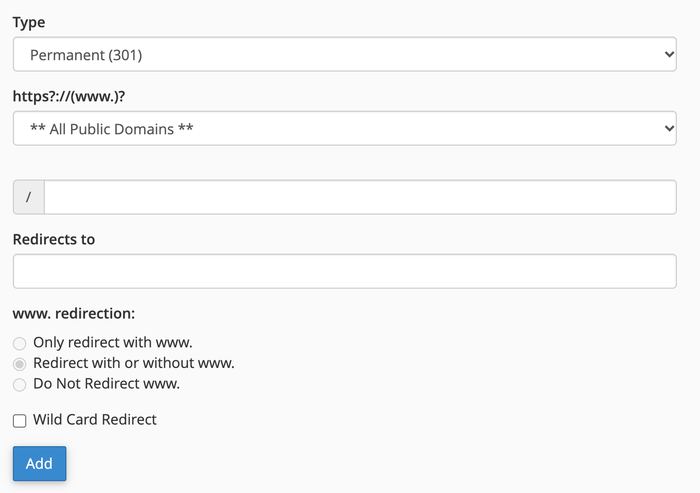
The Add Redirect form in cPanel - Choose the www setting
Leave Redirect with or without www. selected unless you have a reason to change it.
- Add
Click Add. The redirect appears under Current Redirects, where you can also remove it.
A redirect from a page to the same page, or two redirects pointing at each other, makes the page fail to load.
Common questions
My website runs on WordPress. Should I use this?
A redirect plugin inside WordPress is usually easier to manage, and keeps all your redirects in one list. Either works, but don’t set the same redirect in both places.
Can I redirect my whole site to https?
You don’t need to. Your site already has a free SSL certificate, and most websites and WordPress send visitors to https on their own. If yours doesn’t, contact us and we’ll check it.
I added a redirect but nothing happens.
Your browser may remember the old page. Try a private window. If it still doesn’t work, check there isn’t a second redirect for the same address in WordPress.