
Built your website on your computer, or got the files from a developer? Upload them to your hosting with File Manager in your browser, or with an FTP app for bigger sites.
Where your files go
Your main domain’s website lives in the public_html folder. An extra domain on the same hosting has its own folder, which you chose when you added it. Your home page must be called index.html or index.php.
Option 1: File Manager (easiest)
- Zip your website first
On your computer, put all the website’s files into one ZIP file. One big file uploads much faster than hundreds of small ones.
- Open File Manager
Log in to cPanel, then go to Files › File Manager and open the
public_htmlfolder on the left.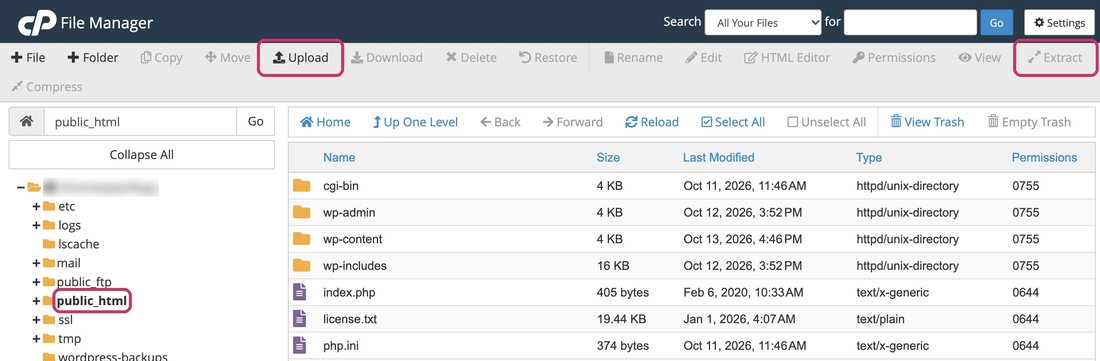
File Manager: public_html on the left, Upload and Extract at the top - Upload the ZIP
Click Upload at the top, choose your ZIP file and wait until it says complete.
- Extract it
Back in
public_html, click the ZIP file once to select it, then click Extract at the top right (or right-click the file and choose Extract). Check the files landed directly inpublic_html, not in a folder inside it, then delete the ZIP.
Option 2: an FTP app (for big sites)
An FTP app such as FileZilla (free, Windows and Mac) copies whole folders at once and carries on if the connection drops.
- Find your FTP details
In cPanel, go to Files › FTP Accounts and click Configure FTP Client next to your account. It shows your FTP server, username and port under Manual Settings.
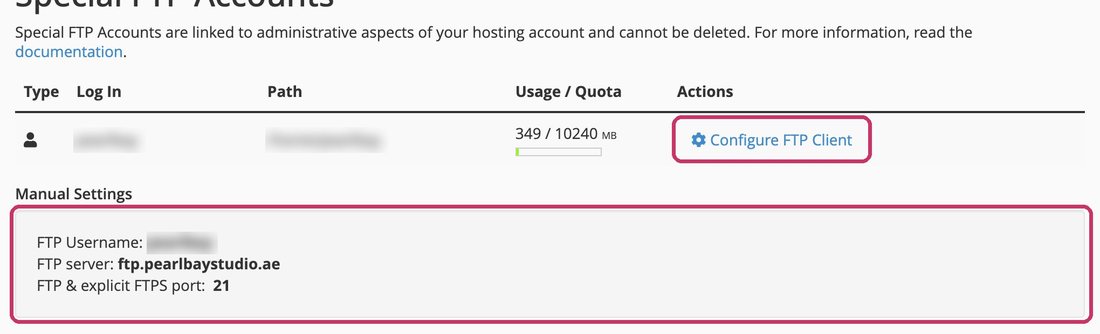
Configure FTP Client shows your FTP details (username blurred here) - Connect
In the app, enter the server (
ftp.yourdomain.ae), your cPanel username and password, and port 21. Choose “explicit FTP over TLS” if the app asks, so your password is sent securely. - Copy your files
Open
public_htmlon the server side and drag your website’s files into it.
Create a separate login for them under FTP Accounts › Add FTP Account, limited to the website’s folder. Delete it when they’re done.
Use your server’s name instead of ftp.yourdomain.ae, such as finyaan.tasjeel.ae. It’s in your hosting welcome email.
Moving from another host?
We’ll move your website and email for free. See Move your website to Tasjeel.ae: free migration. Using WordPress? Install it from cPanel instead of uploading files: see Install WordPress.