
Forward email from one address to another, so you only have one inbox to check. Or set an automatic reply while you’re away.
Forward email to another address
- Open Forwarders
Log in to cPanel, then go to Email › Forwarders and click Add Forwarder.
- Fill in the form
In Address to Forward, type the part before the @, such as
sales, and pick the domain. Under Destination, leave Forward to Email Address selected and type the address to send it to.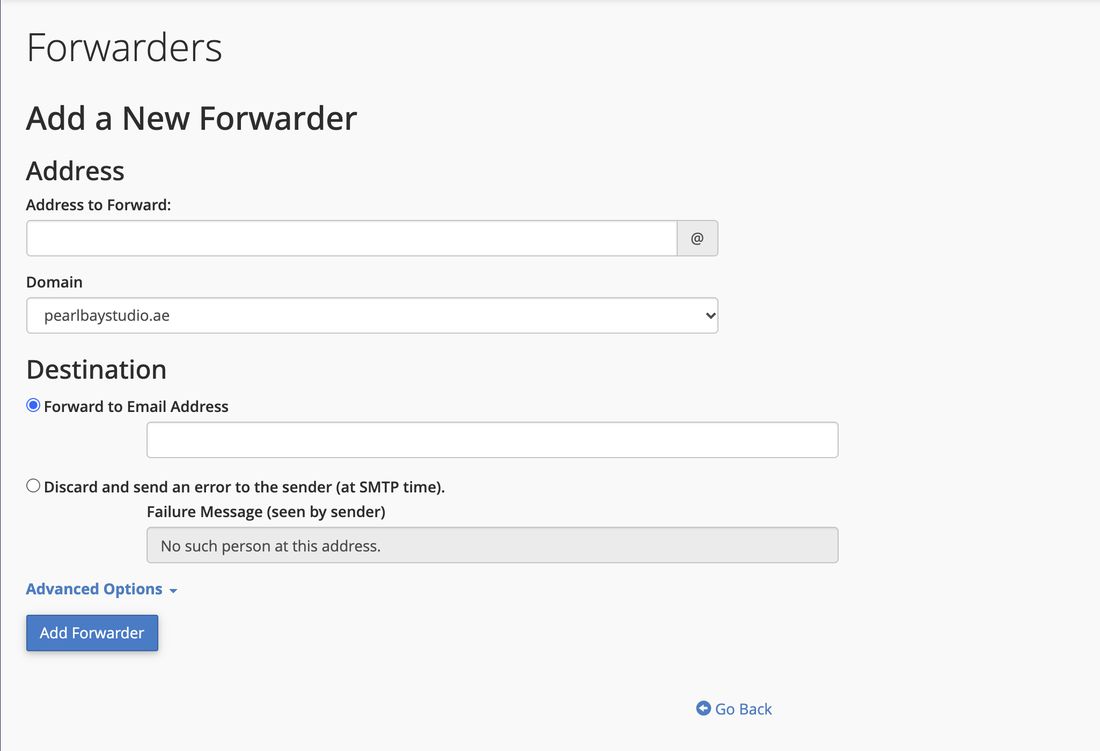
Add a New Forwarder in cPanel - Save
Click Add Forwarder. From now on, a copy of every email sent to that address goes to the other one.
A forwarder can be an address on its own, such as sales@ forwarding to your main mailbox. If there’s also a mailbox with that address, it keeps a copy too.
Set an out-of-office reply
- Open Autoresponders
Log in to cPanel, then go to Email › Autoresponders and click Add Autoresponder.
- Choose the mailbox
In Email, type the part before the @ and pick the domain.
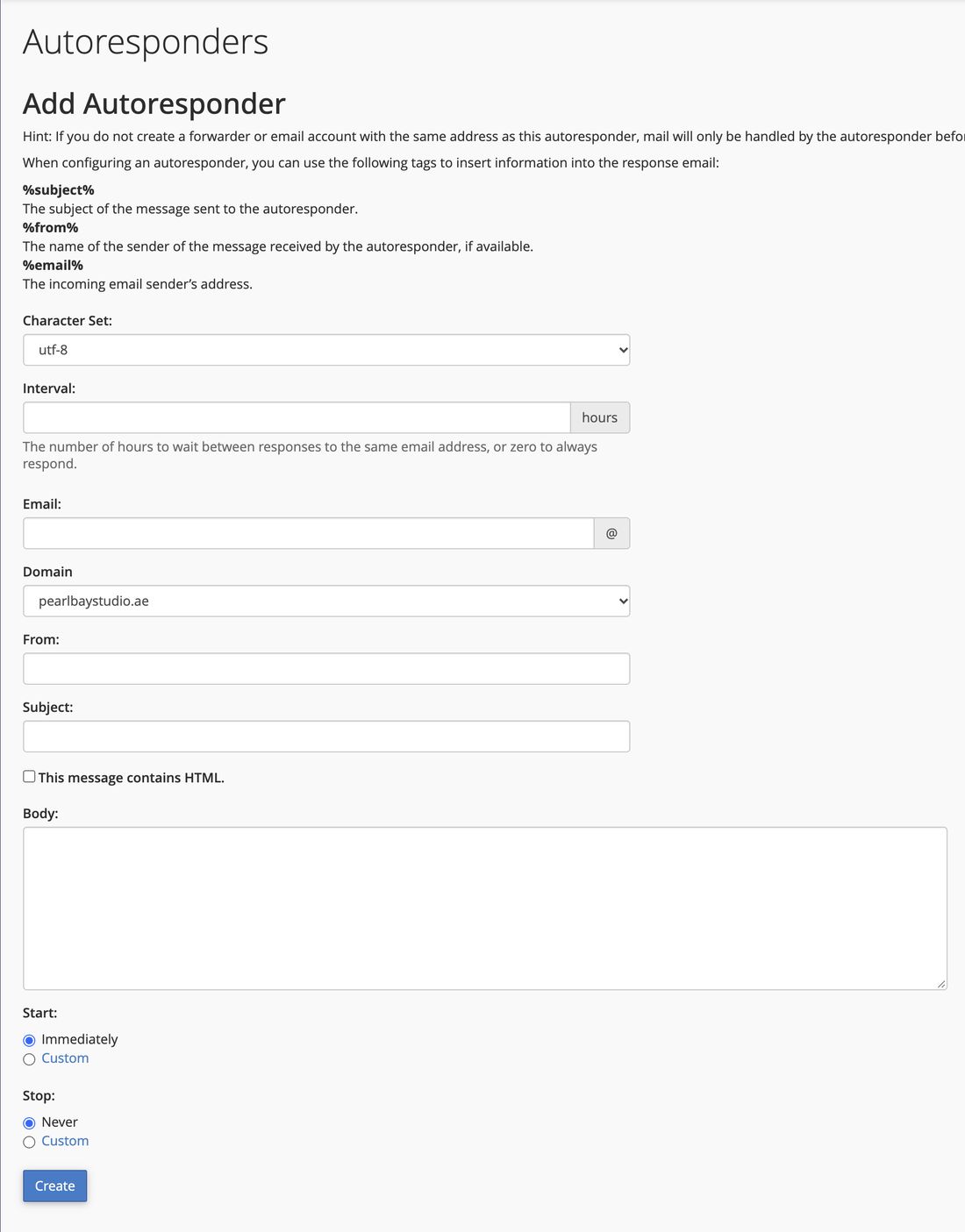
Add Autoresponder in cPanel - Write the reply
Fill in From (your name), Subject and Body. Interval is how many hours to wait before replying to the same person again. 24 works for most people.
- Set the dates
Under Start, choose Immediately or a date. Under Stop, choose Custom and pick your return date, so you don’t forget to turn it off.
- Save
Click Create. To turn it off early, open Autoresponders and click Delete next to it.