
PHP is the language most websites run on, including WordPress. You can change the version yourself in cPanel, or ask us to do it for you.
A new PHP version can stop an older website, theme or plugin from working, or break parts of your site. Take a backup first, check your site straight after the change, and switch back if anything looks wrong. See Back up and restore your website.
Change it in cPanel
- Open Select PHP Version
Log in to cPanel, then go to Software › Select PHP Version.
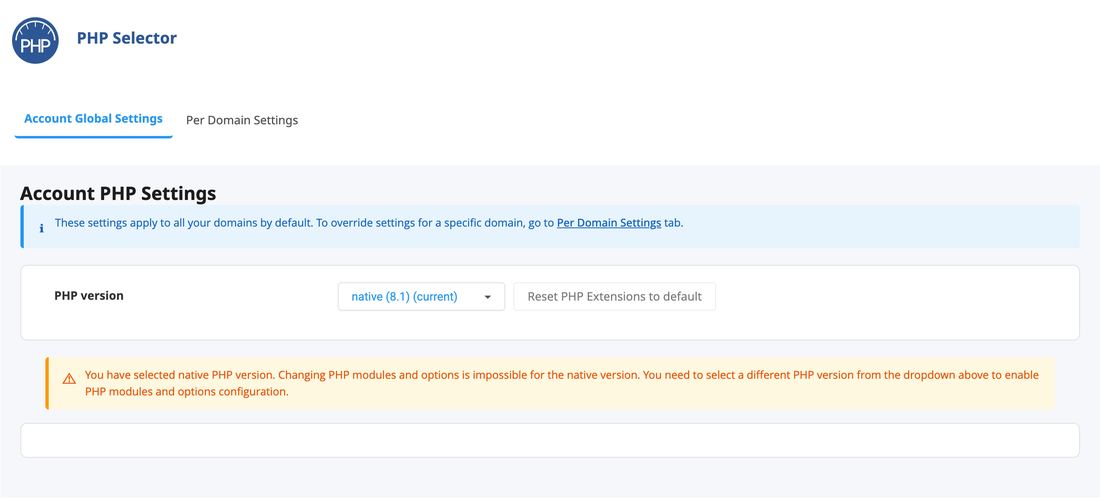
Select PHP Version in cPanel - Pick the version
Choose a version from the PHP version list. It applies to all the websites on your hosting. Need a different version for just one of them? Open a ticket and we’ll set it up for you.
- Check your website
Open your website in a private window and click through a few pages, including any forms or checkout. If something is broken, set the version back.
Which version should I choose?
The newest version your website supports. Recent versions are faster and still get security fixes. If you’re not sure what your site supports, ask your developer or check your theme and plugins.
Open a ticket with the domain and the version you want, and we’ll set it.
Common questions
It says “native”. What does that mean?
Native is the server’s standard version. It works fine, but you can’t change PHP extensions or settings such as memory limits on it. Choose a numbered version to unlock those.
My site shows an error after the change.
Switch back to the version you had before. Then update your theme and plugins, and try again.