
Point your domain to your Squarespace site while keeping your email with us.
In Squarespace
- Add your domain in Squarespace
In Squarespace, go to Domains › Use a domain I own, and type your domain.
- Open the DNS records
Squarespace shows the records to add, including one with a unique code that proves the domain is yours.
- Add the records with us
Add all of them where your domain’s DNS lives.
The records to add
Squarespace shows the exact records for your site. Copy them exactly. They usually look like this:
| Type | Name / Host | Points to |
|---|---|---|
| CNAME | The code Squarespace shows |
verify.squarespace.com |
| CNAME | www |
ext-cust.squarespace.com |
| A | @ |
198.185.159.144 |
| A | @ |
198.185.159.145 |
| A | @ |
198.49.23.144 |
| A | @ |
198.49.23.145 |
Leave your MX records and anything else alone. Then your email, and anything else on your domain, keeps working exactly as it is.
Where to add the records
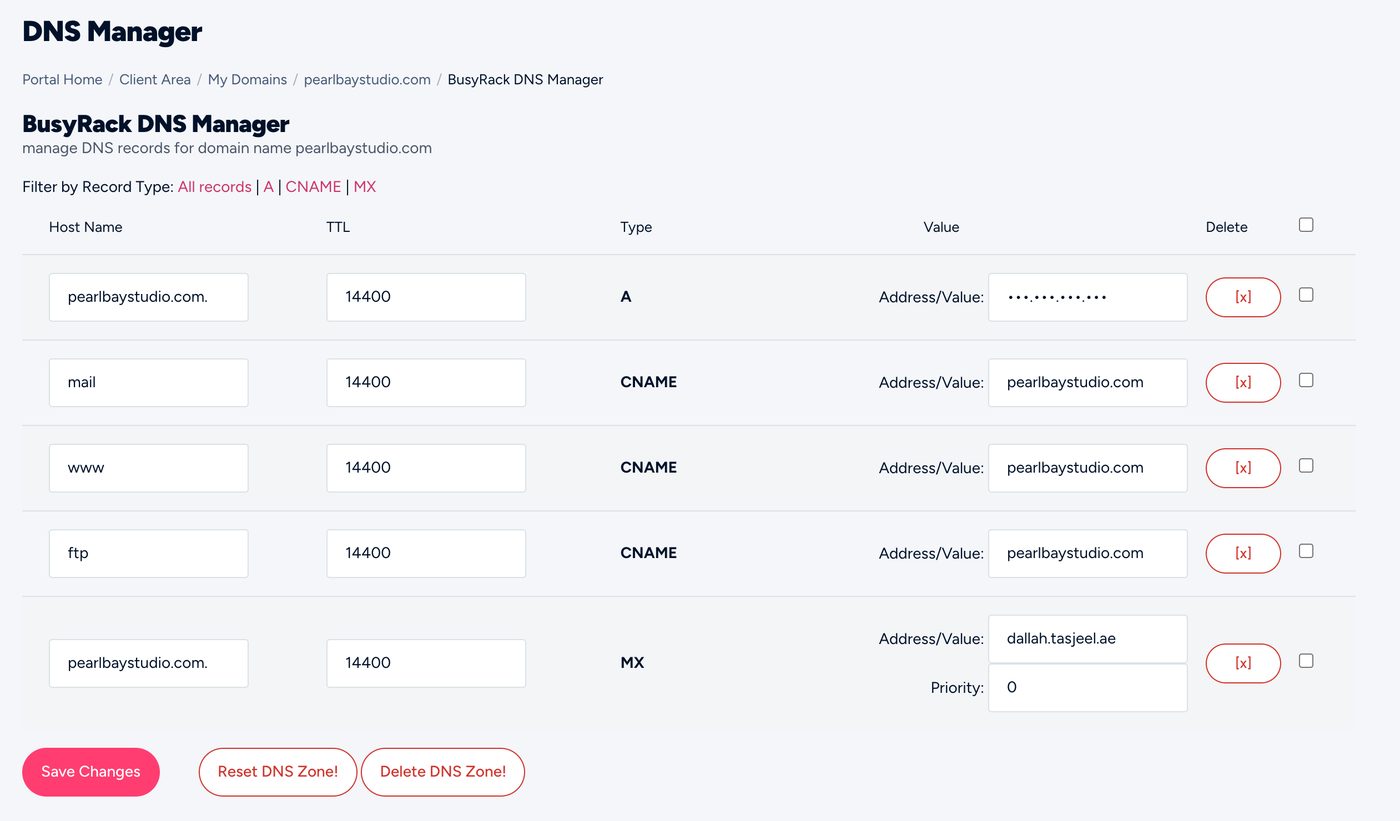
Add them where your domain’s DNS lives: the client area’s DNS Management if you’re on ns3 and ns4, cPanel’s Zone Editor if you’re on our hosting nameservers, or your DNS provider (such as Cloudflare). Not sure? See Where to edit your DNS.
Set these records to DNS only (grey cloud), not proxied, unless the platform tells you otherwise. Otherwise the platform can’t issue its SSL certificate.
Send us the records the platform shows you, by chat or ticket, and we’ll add them.
How long it takes
Usually under an hour, sometimes up to 24 hours. Squarespace checks the records and then turns on SSL for your site by itself.