
Your domain’s DNS records – the settings that point it to your website and email – can only live in one place at a time. Edit them anywhere else and the change saves, but nothing happens. Here’s how to find the right place.
The short answer
Your nameservers decide where your DNS lives. Find them first, then edit DNS there.
| If your nameservers are… | Edit your DNS in… |
|---|---|
ns3.tasjeel.ae and ns4.tasjeel.ae (our default) |
Your client area: Domains › My Domains › Manage › DNS Management |
The nameservers for your hosting server, such as ns5/ns6.tasjeel.ae, ns7/ns8.tasjeel.ae or ns1–ns4.mysecurecloudhost.com |
cPanel: Zone Editor |
| Anyone else’s, such as Cloudflare, GoDaddy or Wix | That company’s control panel. We can’t change it from our side. |
DNS Management in the client area accepts changes for every domain, even when your domain doesn’t use it. If your nameservers point somewhere else, those changes do nothing.
Step 1: check your nameservers
- Open your domains
Log in at my.tasjeel.ae, go to Domains › My Domains and click Manage next to the domain.
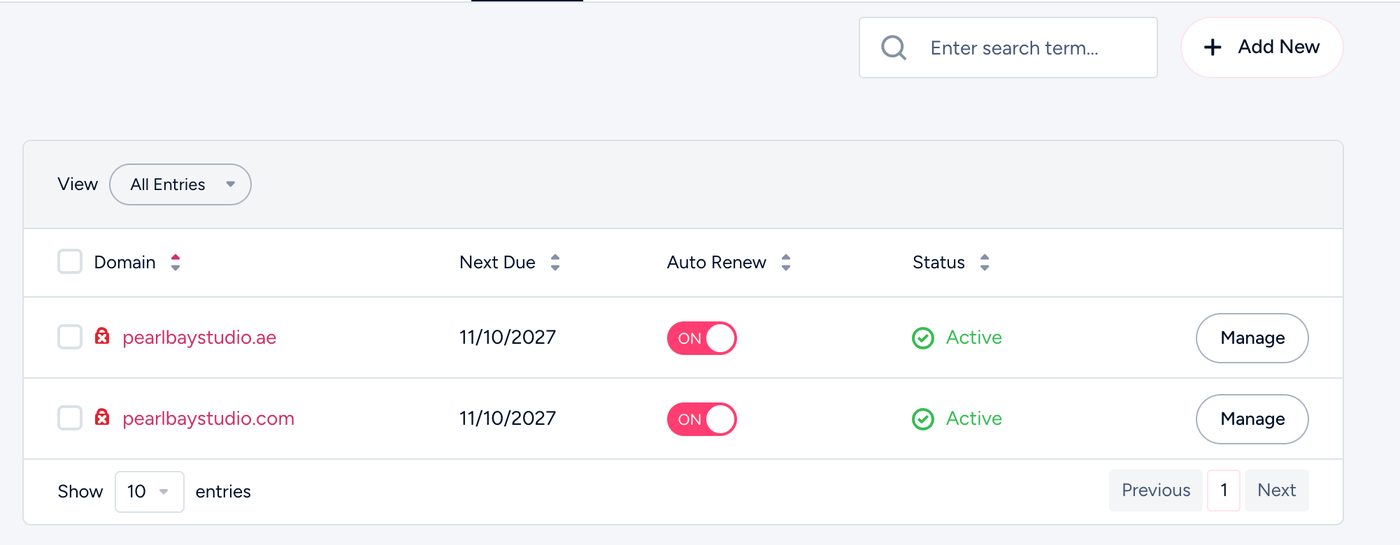
My Domains in the client area - Open Nameservers
Choose Nameservers in the left menu. If Use default nameservers is selected, your domain is on ns3 and ns4. If Use custom nameservers is selected, the boxes show which ones.
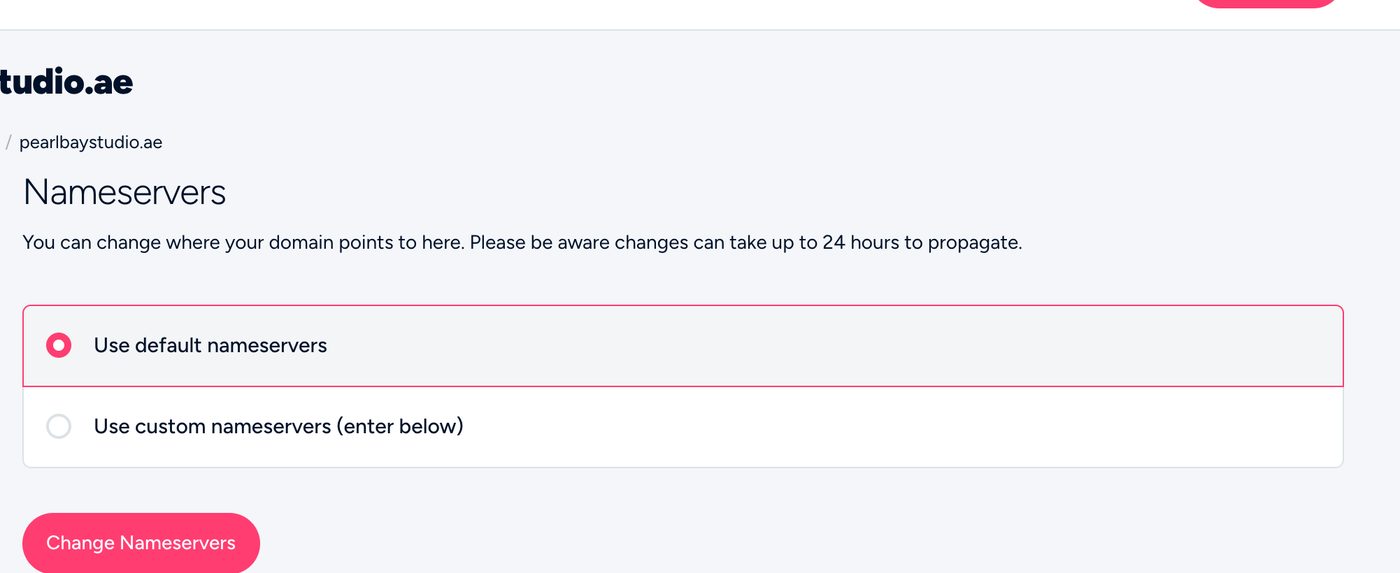
The Nameservers page, here on our default nameservers
Look it up with any WHOIS search and check the “Name servers” line, or ask us and we’ll tell you.
Step 2: edit DNS in the right place
In the client area (nameservers ns3 and ns4)
- Open DNS Management
From your domain’s page, choose DNS Management in the left menu.
- First time? Create the zone
If you see “Module could not find any existing DNS zone”, click Yes, Create. Your domain has no DNS until you do this.
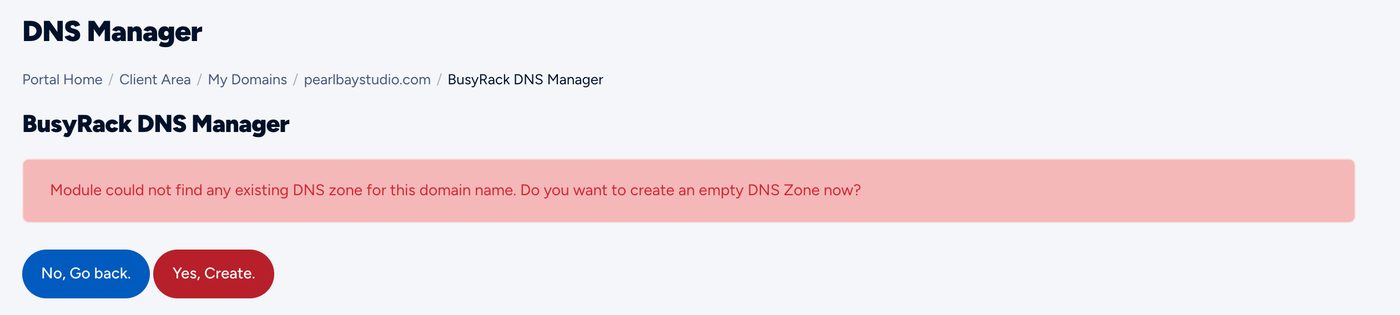
The first time you open DNS Management - Add or change records
Your domain now has a few starting records. Edit them, or fill in Add a new DNS record at the bottom, then click Save Changes.
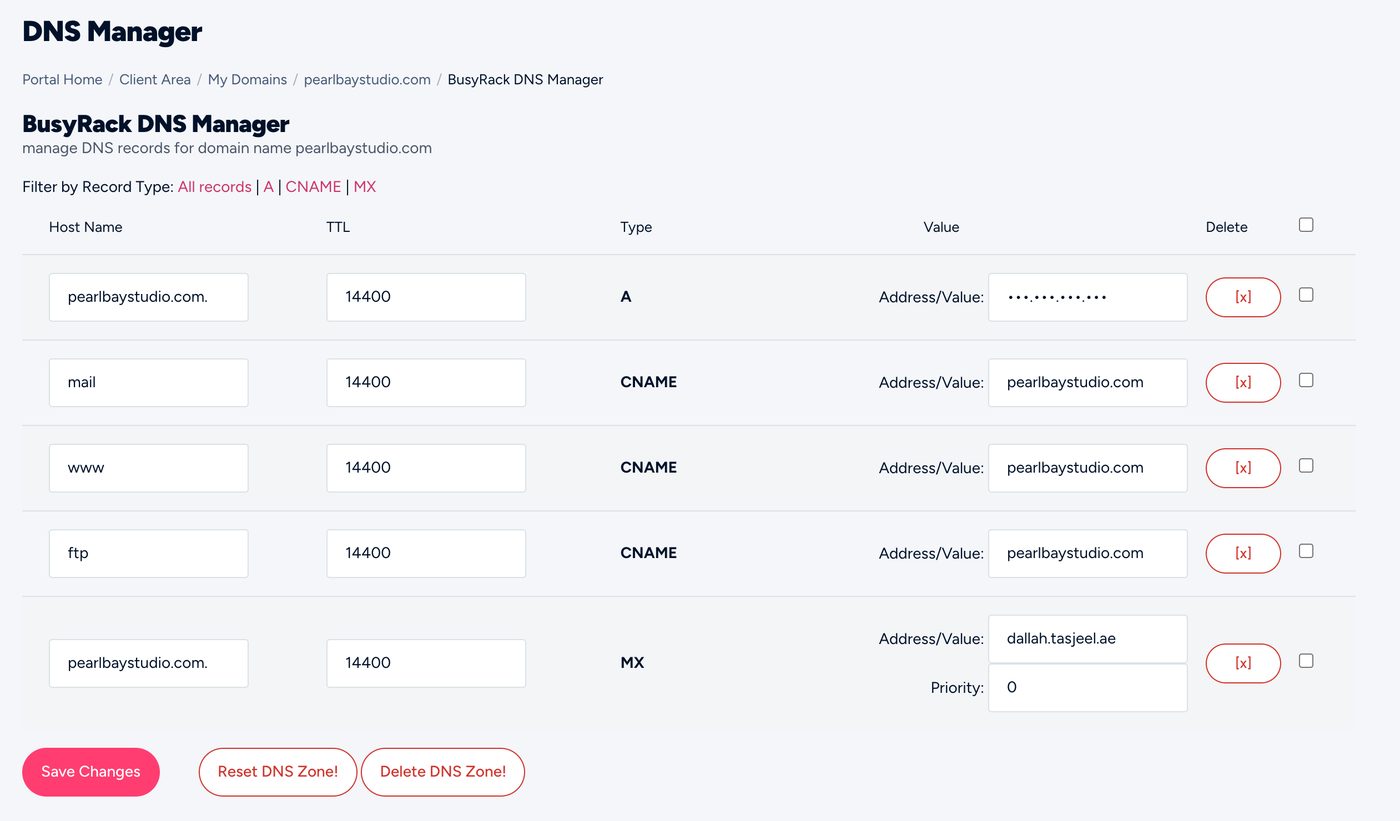
DNS Management with its starting records
In cPanel (your hosting nameservers)
- Log in to cPanel
From the client area, open your hosting plan and choose Log in to cPanel, or use the cPanel address in your hosting welcome email.
- Open Zone Editor
Search for Zone Editor, then click Manage next to your domain.
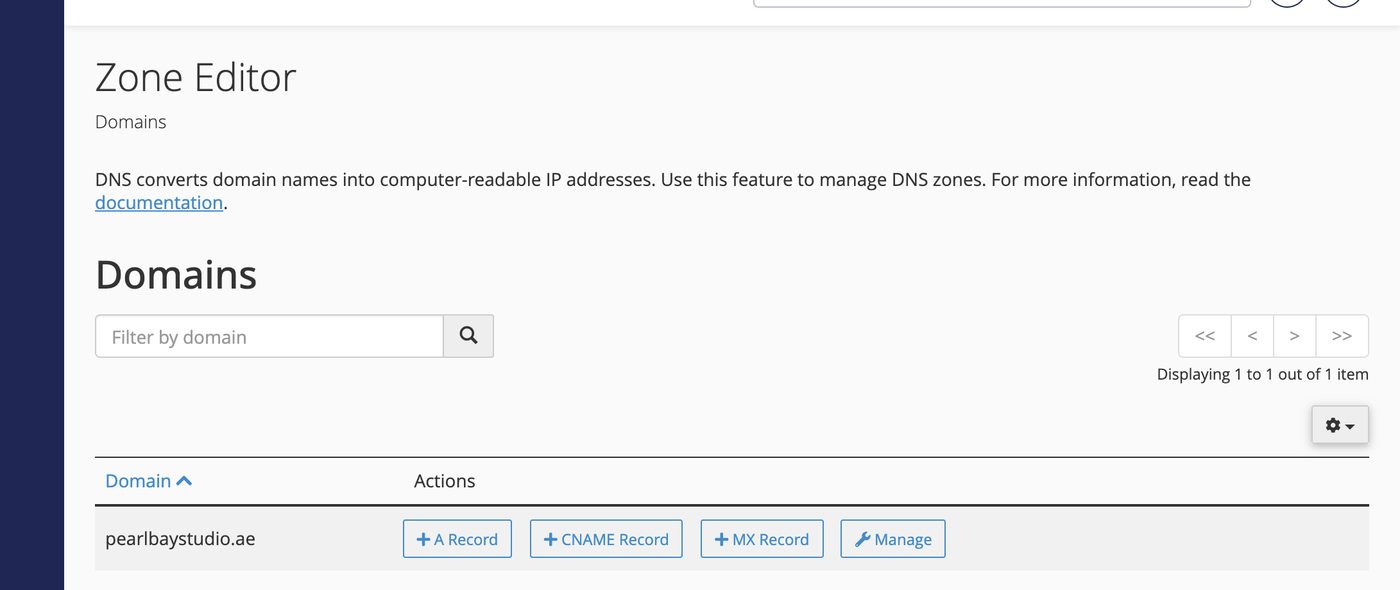
Zone Editor in cPanel - Add or change the record
Use + A Record, + CNAME Record or + MX Record, or Manage to edit an existing one.
How long it takes
Most changes work within a couple of hours. Allow up to 24 hours for every network to catch up.
Common questions
I added a record in the client area and it’s still not working.
Check your nameservers. If they aren’t ns3 and ns4.tasjeel.ae, add the same record where they point instead – usually cPanel.
My domain doesn’t open at all and I only have the domain with you.
Open DNS Management and click Yes, Create if asked. Until then your domain has no DNS.
Should I use both places to be safe?
No. Only one is ever live. Keep your records where your nameservers point, so you always know where to look.