
You added or changed a DNS record, waited, and nothing happened? Run through these six checks. One of them is almost always the answer.
1. Are you editing in the right place?
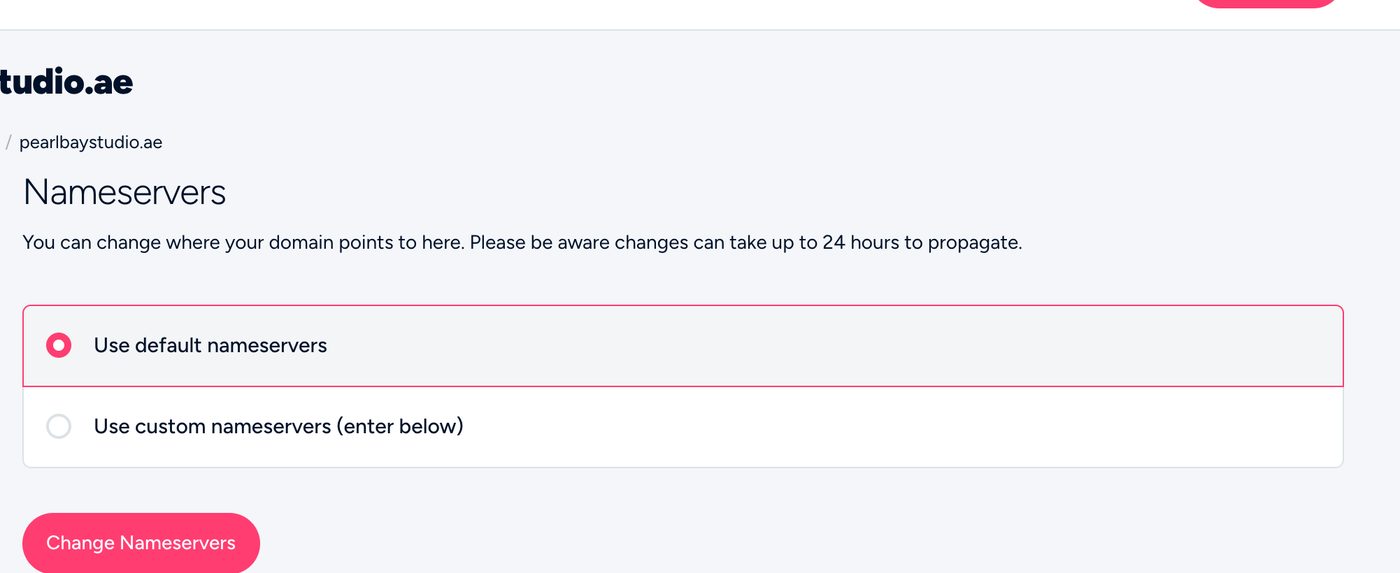
The most common cause by far. Your DNS only works where your nameservers point. Check them under Domains › My Domains › Manage › Nameservers:
ns3.tasjeel.aeandns4.tasjeel.ae→ edit in the client area’s DNS Management.- Your hosting nameservers (such as
ns5.tasjeel.ae) → edit in cPanel › Zone Editor. - Anyone else’s (Cloudflare, GoDaddy) → edit there.
2. Has your DNS zone been created?
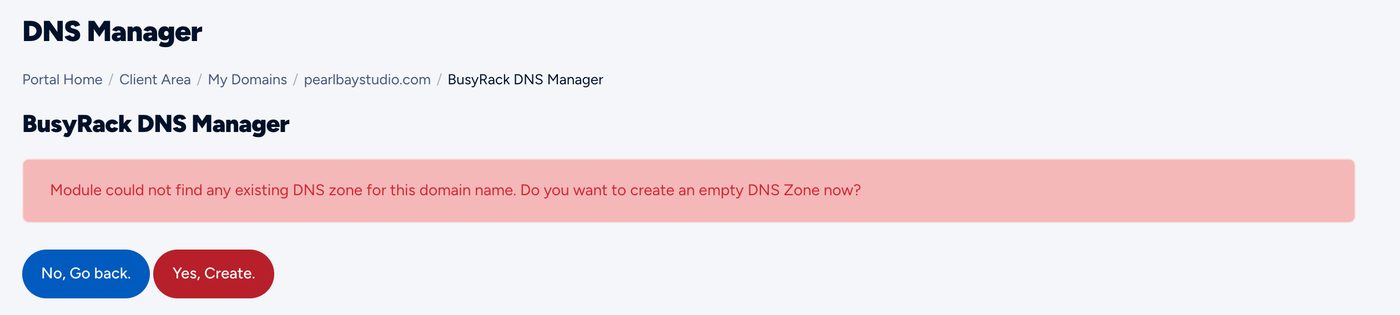
On our default nameservers, a new domain has no DNS until you open DNS Management and click Yes, Create. Until then, nothing you add can work.
3. Did you save?
In DNS Management, click Save Changes after adding or editing. In cPanel’s Zone Editor, each record saves on its own.
4. Is the record exactly right?
- Name: for the domain itself, enter your full domain name with a dot at the end (for example
pearlbaystudio.ae.). For a subdomain, enter just the first part, likewwwormail. Don’t type the domain twice (www.pearlbaystudio.ae.pearlbaystudio.ae). - Value: copy and paste it from your provider, with no spaces at the start or end. For names (CNAME, MX), a dot at the end is fine.
- Type: A for an IP address, CNAME for a name, MX for email, TXT for verification codes.
5. Is there an old record in the way?
Two A records for the same name, or an old MX record left behind, can send visitors or email to the wrong place. Delete the old one.
6. Have you waited long enough?
Most changes work within a couple of hours, and can take up to 24 hours. Your own computer or phone may remember the old answer for longer, so test on mobile data or another device.
Still not working?
Open a ticket or chat with us, and tell us your domain name, the record you added and what it should do. We’ll check it for you.