
DNS records tell the internet where your website and email live. Here’s where to change them, what each type does, and how to add one.
First: where does your DNS live?
You edit DNS where your domain’s nameservers point. On ns3.tasjeel.ae and ns4.tasjeel.ae, use DNS Management in the client area. On your hosting nameservers, use Zone Editor in cPanel. On Cloudflare or another provider, edit it there. See Where to edit your DNS (and why your change didn’t go live).
The record types
| Type | What it does | Example |
|---|---|---|
| A | Points a name to a server’s IP address | Your website on a builder or another host |
| CNAME | Points a name to another name | www → shops.myshopify.com |
| MX | Says where your email is delivered | Google Workspace or Microsoft 365 |
| TXT | Holds text, such as a verification code or SPF | google-site-verification=… |
Add a record in DNS Management (ns3 and ns4)
- Open DNS Management
Log in to your client area at my.tasjeel.ae. Click Domains › My Domains, click the domain, then DNS Management in the menu on the left.
- Create the zone if asked
If it asks whether to create DNS for the domain, click Yes, Create. Until you do, no record can work.
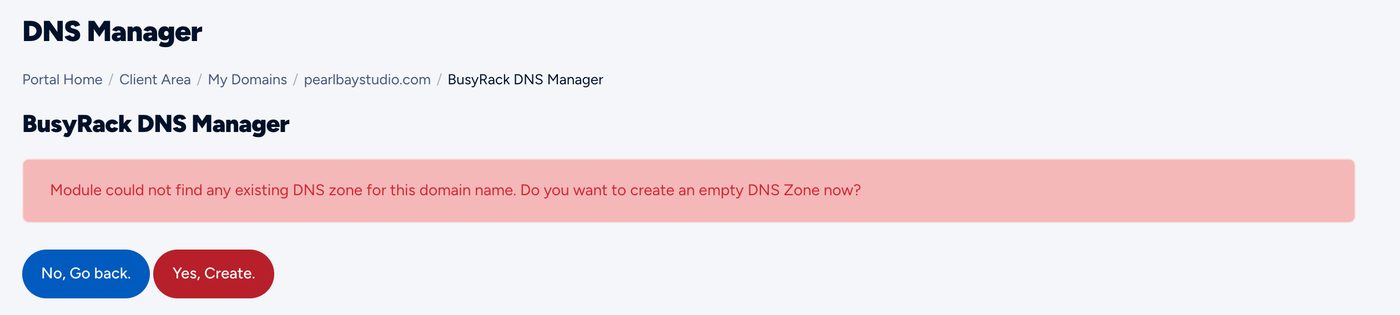
Click Yes, Create the first time - Add the record
In the empty row at the bottom, type the name (for example
www, or leave it empty for the domain itself), pick the type and paste the value.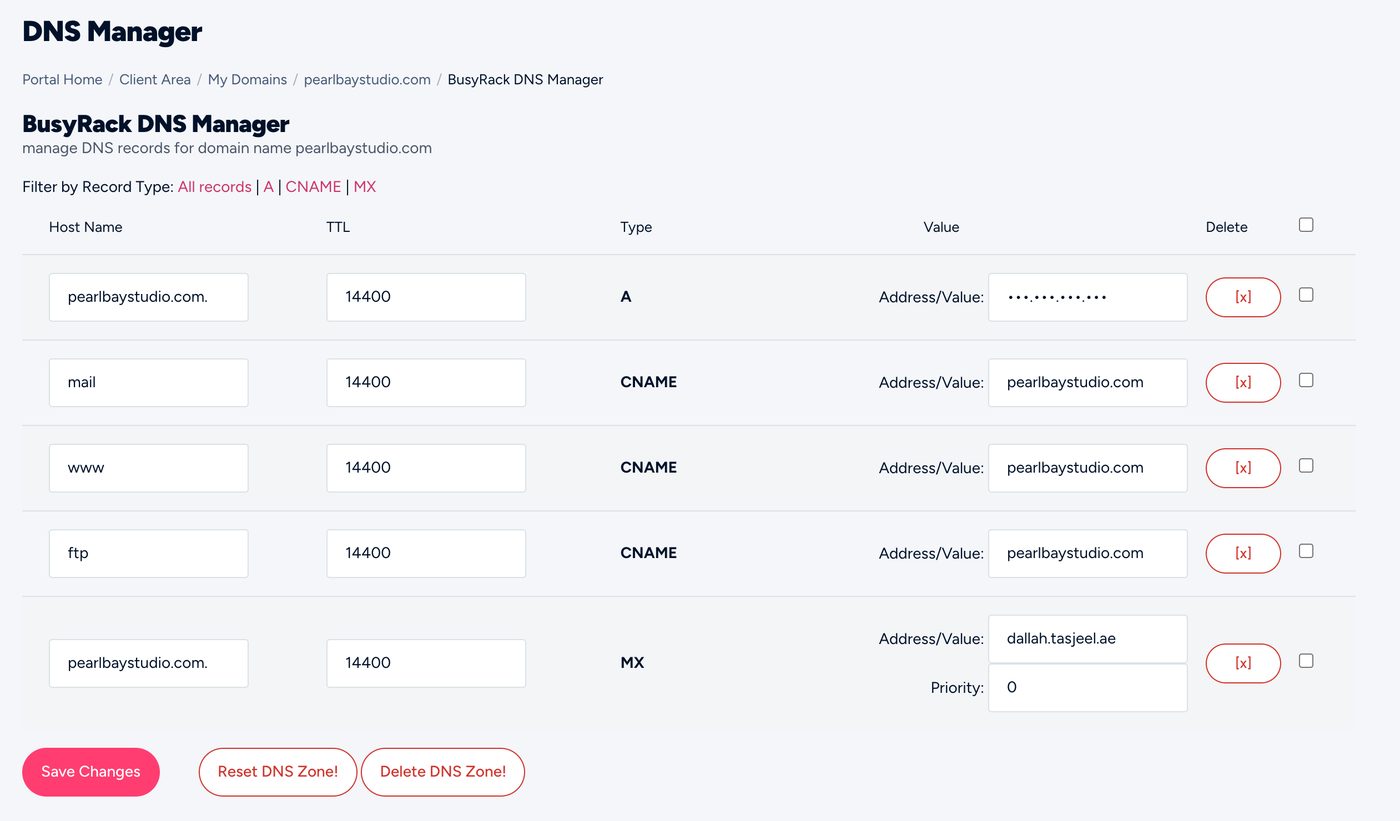
A new record in DNS Management - Save
Click Save Changes.
Add a record in cPanel (hosting nameservers)
- Open Zone Editor
Log in to cPanel, then go to Domains › Zone Editor.
- Click Manage
Click Manage next to your domain, then + Add Record.
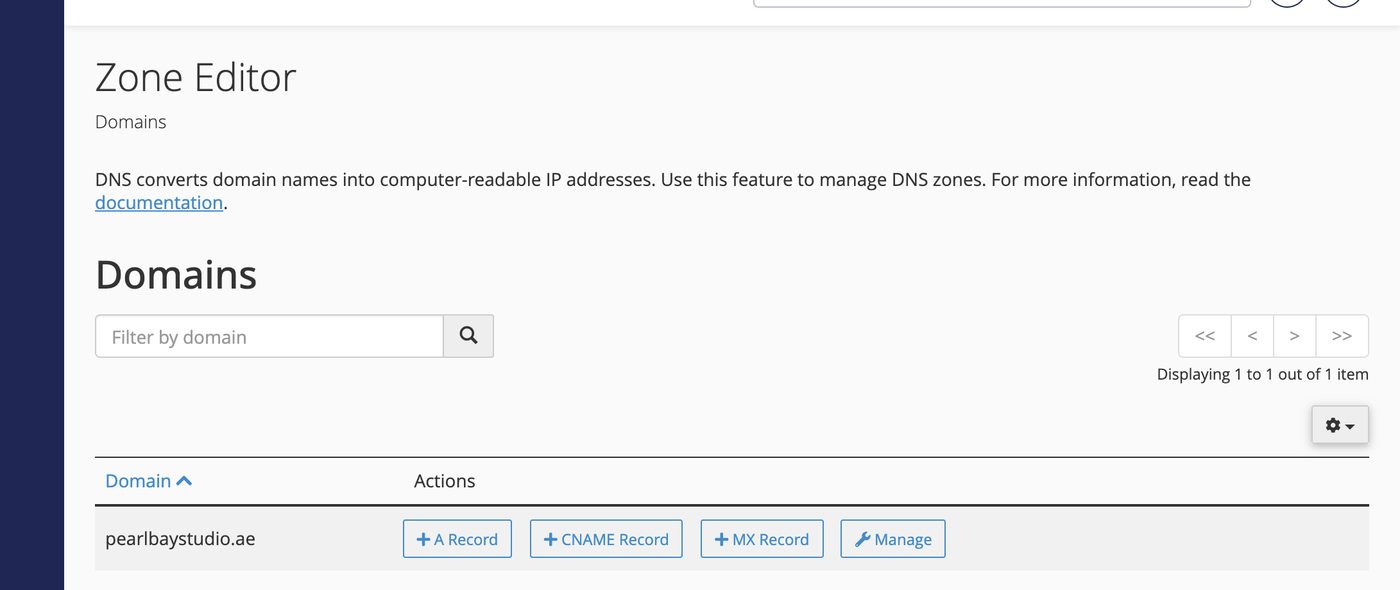
Zone Editor in cPanel - Fill it in and save
Pick the type, type the name and value, and click Add Record. Each record saves on its own.
Editing or deleting the wrong A or MX record can take your website or email offline. Not sure? Send us the records and we’ll add them for you.
Changes usually work within a couple of hours. See How long DNS changes take.