
Moving your domain from Hostinger to Tasjeel.ae takes a few minutes of your time, and your website and email keep working while it moves. Prefer to keep your website at Hostinger? We cover how to connect it to a Tasjeel.ae domain too.
Transfer your domain from Hostinger
- Unlock it and turn off privacy
In hPanel, go to Domains, choose Manage next to your domain, switch off the Transfer lock and switch off Privacy Protection.
- Get the authorization code
In the same Domain Overview, show the authorization code and copy it.
Can’t get the code from Hostinger?For .ae domains, we can ask the .ae registry to send the transfer code straight to the email address registered on the domain. Just chat with us or open a ticket and tell us the domain name. If you no longer use that email address, Hostinger needs to update it first.
- Order the transfer with us
In our client area, go to Domains › Transfer in a Domain and enter the domain and code. See Transfer a domain to Tasjeel.ae: start here.
The domain can’t move within 60 days of being registered or transferred, and it must not be expired.
Moving your website too?
We’ll move it for you, free. Just ask us by chat or ticket. See Move your website to Tasjeel.ae: free migration.
Keeping your website at Hostinger? Connect your Tasjeel.ae domain
There are two ways. Both work well, so pick the one that suits how you want to manage things.
Option A: add Hostinger’s address
Keep our nameservers and add one record pointing your website to Hostinger. Everything else stays as it is.
Option B: use Hostinger’s nameservers
Hostinger manages all your DNS. Any other records you have with us, such as email, need adding at Hostinger.
Option A: add Hostinger’s address to your DNS
- Find your website’s address in Hostinger
In Hostinger’s hPanel, find the IP address for your website (Hostinger shows it in your hosting plan’s details).
- Add it as an A record with us
In the client area’s DNS Management (or cPanel Zone Editor, if your domain uses our hosting nameservers), change the A record for your domain to that IP address. Do the same for
www, or point it at your domain with a CNAME.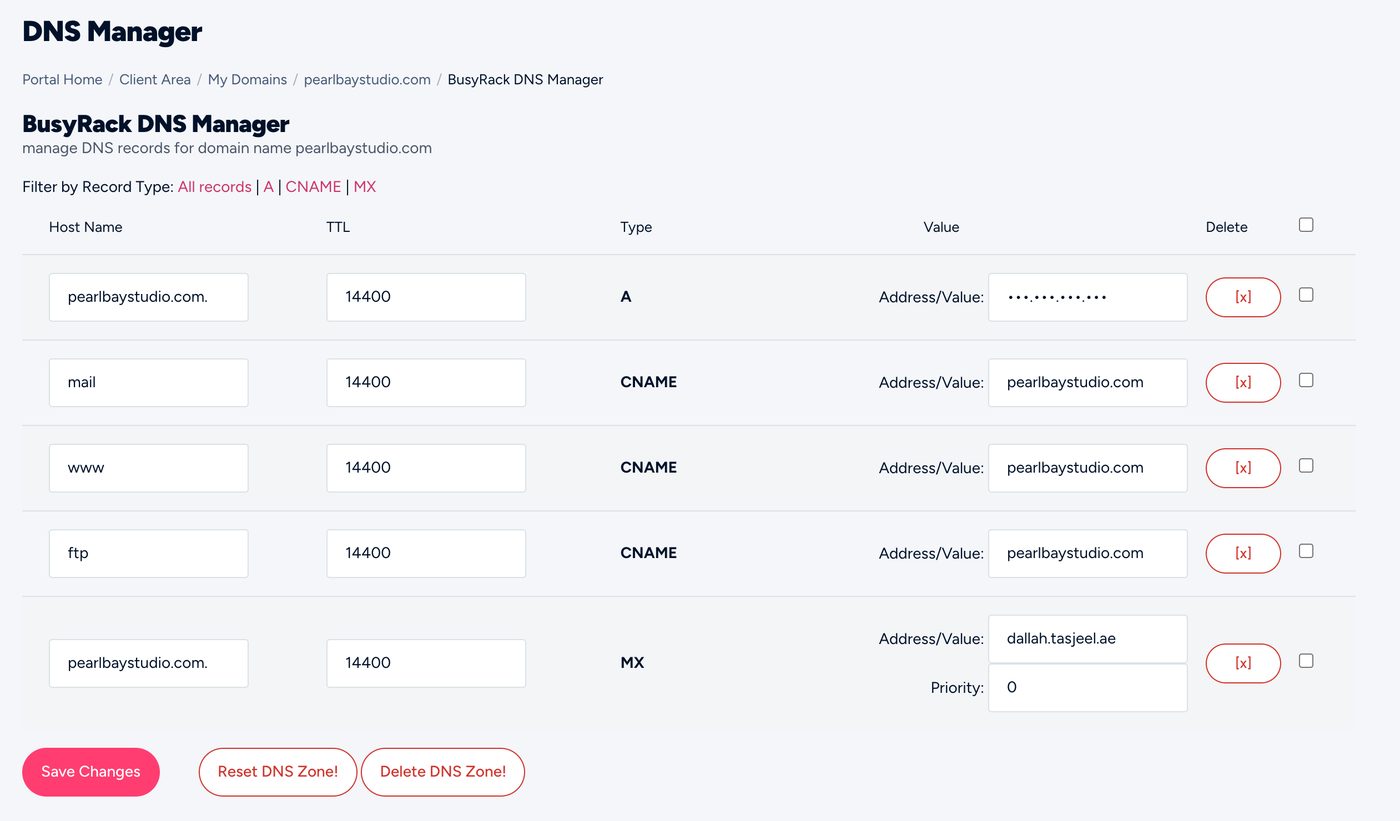
DNS Management, where you change the A record - Leave your email records alone
Your MX and other email records stay as they are, so email keeps working.
Option B: use Hostinger’s nameservers
- Copy Hostinger’s nameservers
In hPanel, find the nameservers for your domain. They often end in
dns-parking.com, but copy exactly what Hostinger shows you. - Change them in your Tasjeel.ae client area
Go to Domains › My Domains, open the domain, choose Nameservers, then Use custom nameservers. Enter Hostinger’s and click Change Nameservers.
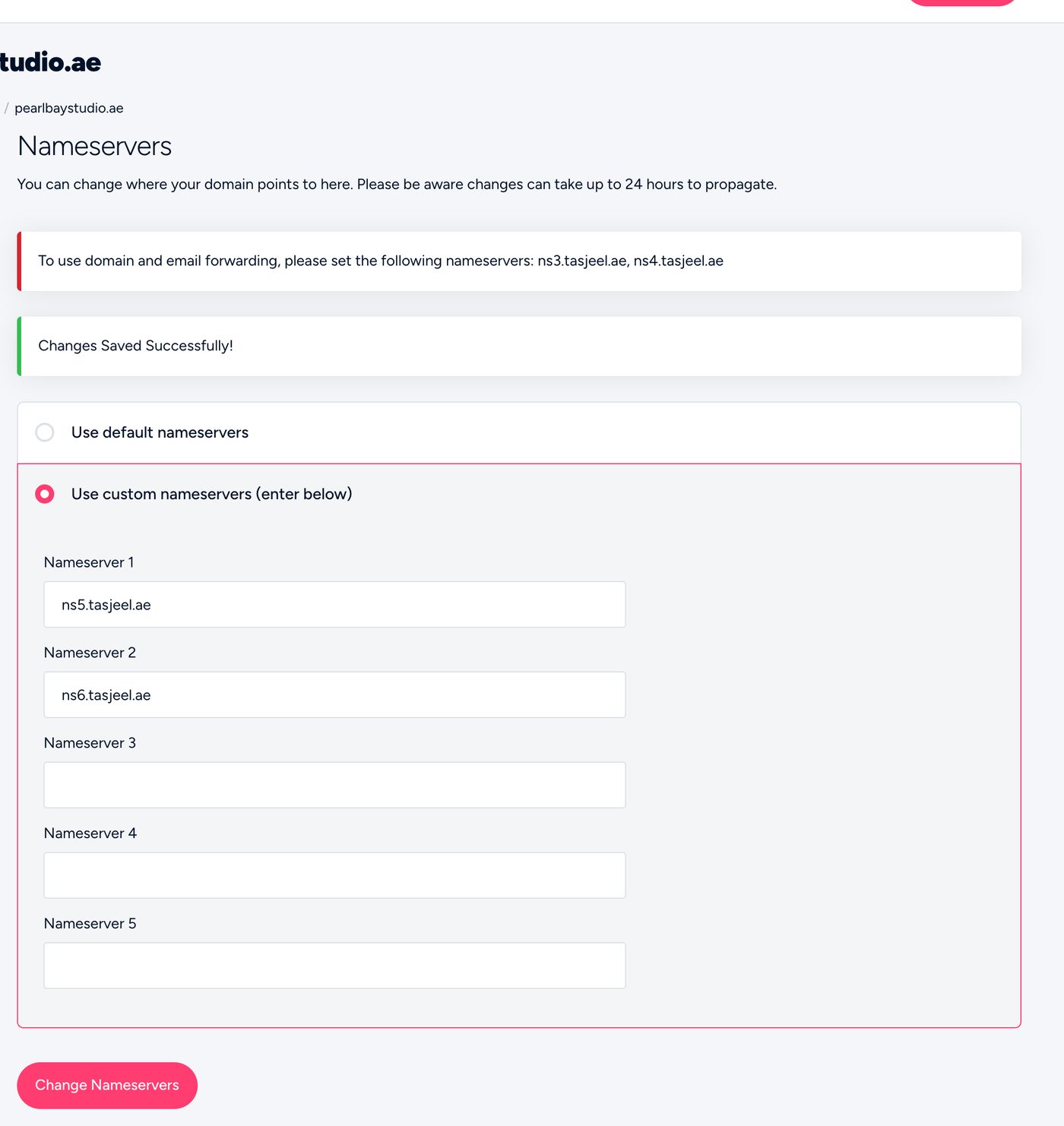
Entering custom nameservers in the client area - Re-add any email records at Hostinger
If your email is still with us, add its records (MX, SPF, DKIM) in Hostinger’s DNS, or your email stops.
Anything you had set up with us, including email records, stops working until it’s added at Hostinger.