
Two-step login asks for a code from your phone as well as your password, so nobody can get into your account with your password alone. It takes two minutes.
- Open Security Settings
Log in at my.tasjeel.ae. Click your name at the top right, then Security Settings.
- Turn it on
On the Two-Factor Authentication tab, click Click here to Enable.
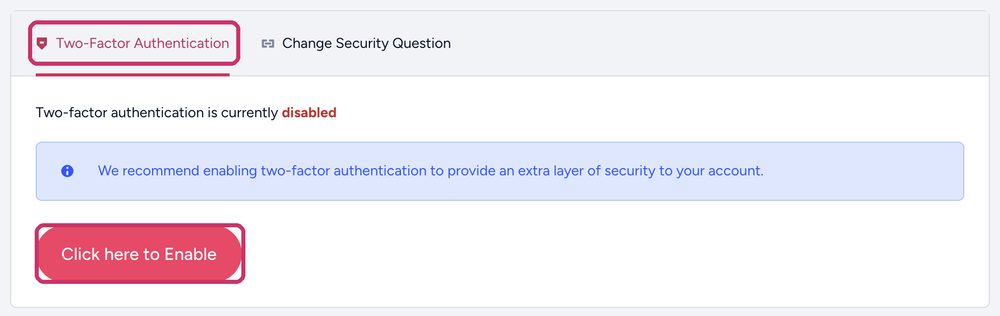
The Two-Factor Authentication tab, then Click here to Enable - Scan the code
Open an authenticator app on your phone, such as Google Authenticator or Microsoft Authenticator, and scan the code on screen.
- Enter the 6-digit code
Type the code the app shows to finish. From then on you’ll need a code each time you log in.
When you turn it on, you get a backup code. Save it somewhere safe, away from your phone. It gets you in if you lose your phone.
On the same page, Login Notification keeps a record of logins to your account.
Also using cPanel directly? It has its own two-step login. See Two-step login for cPanel.