
Two-step login asks for a code from your phone as well as your password, so nobody can get into cPanel with your password alone.
Two-step login in cPanel only protects logging in to cPanel directly, for example at yourdomain.ae/cpanel. The one-click Log in to cPanel button in the client area doesn’t ask for it. So turn on two-step login on your client area too: it protects your hosting, domains and billing in one go. See Set up two-step login (2FA) on your client area.
Turn it on in cPanel
- Open Two-Factor Authentication
Log in to cPanel, then go to Security › Two-Factor Authentication and click Set Up Two-Factor Authentication.
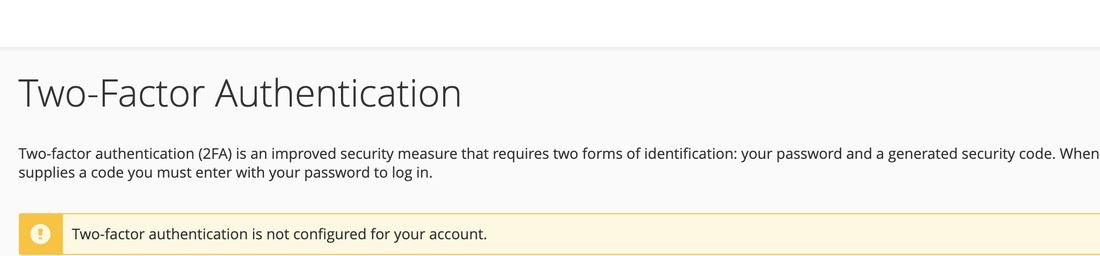
Two-Factor Authentication in cPanel - Scan the code
Open an authenticator app on your phone, such as Google Authenticator or Microsoft Authenticator, and scan the code on screen.
- Enter the 6-digit code
Type the code the app shows and click Configure Two-Factor Authentication.
Open a ticket from the email address on your account and attach a copy of your ID (and your trade licence if the account is a company’s). Once we’ve checked it, we’ll switch two-step login off so you can log in and set it up again.