
Your WordPress admin area is where you edit your site. Here’s how to get in, and what to do if you’ve forgotten the password.
Log in
Go to yourdomain.ae/wp-admin and enter your WordPress username (or email) and password.
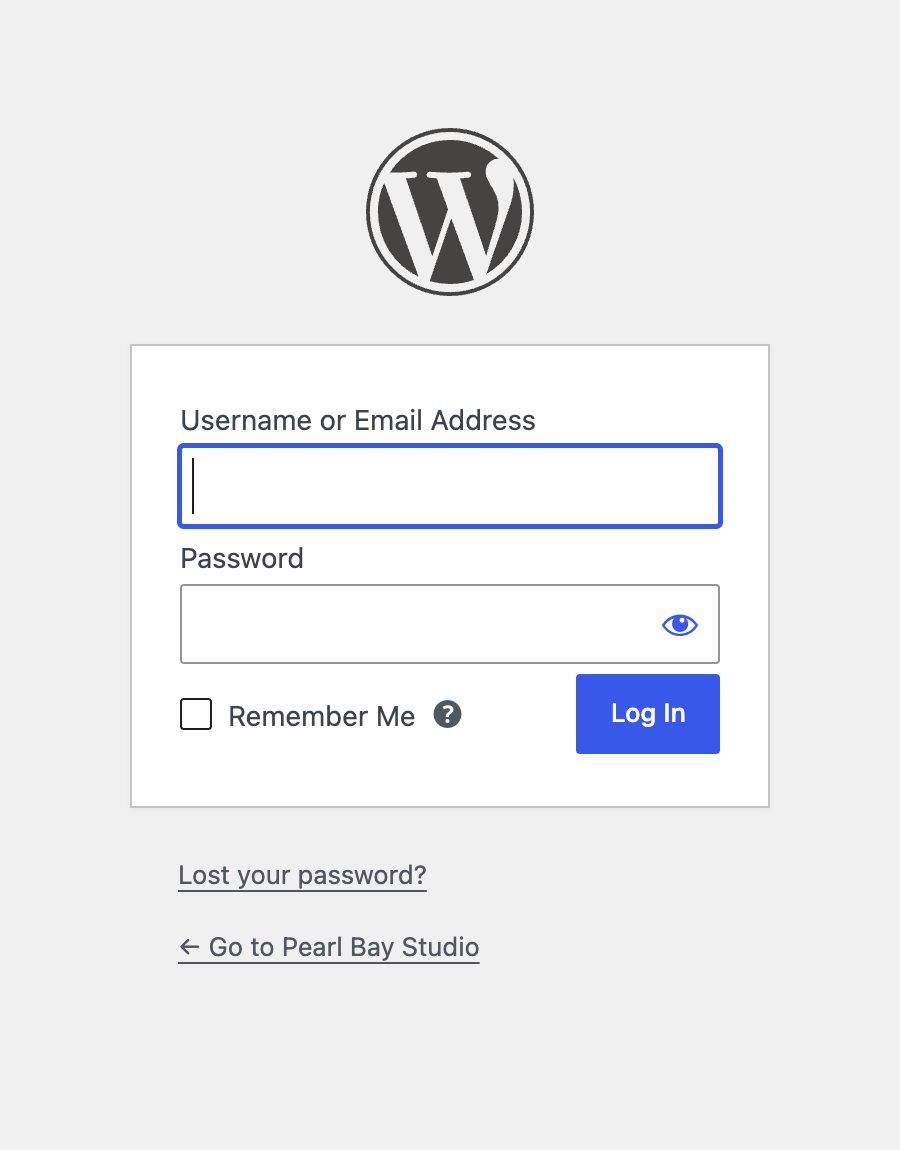
Forgotten your password?
- Click “Lost your password?”
On the login page, enter your username or email. WordPress emails you a reset link.
- Open the email and set a new password
Check your spam folder if it doesn’t arrive within a few minutes.
Reset email not arriving? Log in from cPanel
- Open WordPress Manager
In cPanel, open WordPress Manager by Softaculous.
- Click Login
Click Login next to your site. You’re taken straight into WordPress, no password needed.
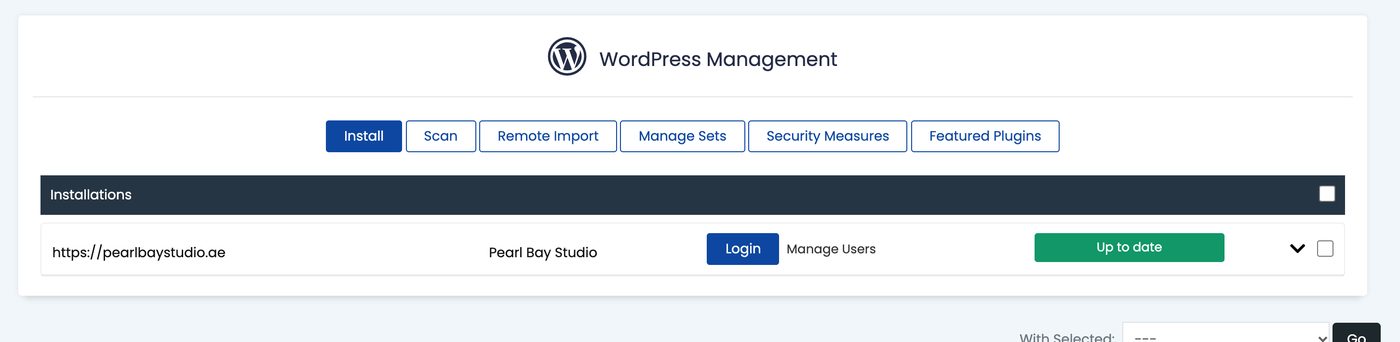
Login, next to your site in WordPress Manager - Set a new password
In WordPress, go to Users › Profile, scroll to Account Management, set a new password and click Update Profile.
Your WordPress login is separate.
It’s not the same as your client area, cPanel or email password.