
Seeing “Allowed memory size of … bytes exhausted”, or just a blank white page? Both usually come from PHP running out of room, or a plugin that’s gone wrong. Here’s how to fix it.
“Allowed memory size exhausted”: give PHP more memory
- Open Select PHP Version
In cPanel, go to Software › Select PHP Version.
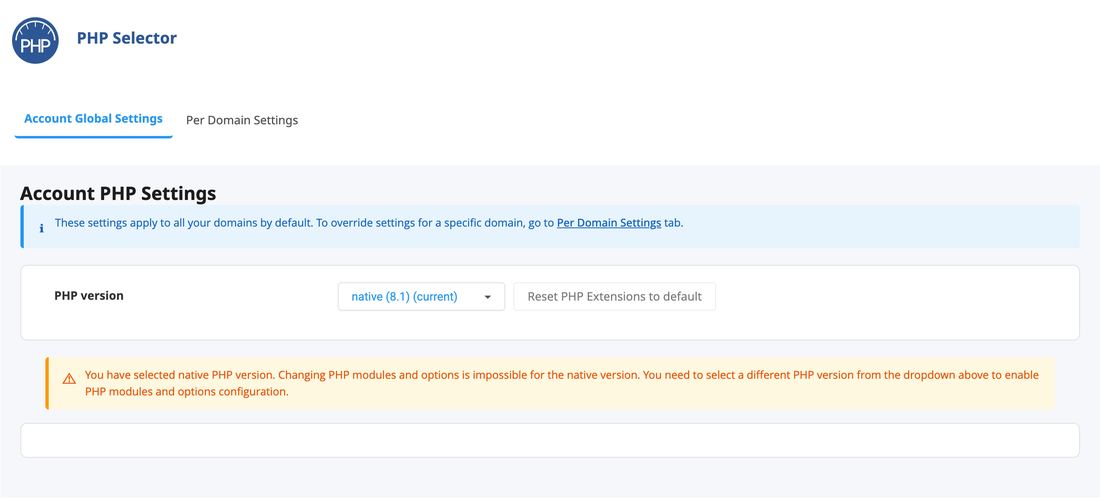
Select PHP Version in cPanel - Choose a numbered version if it says “native”
Settings can’t be changed on the native version. Pick a numbered version from the PHP version list, ideally the newest your site supports. See Change your PHP version.
- Raise memory_limit
Open the Options tab, find
memory_limitand choose a higher value, such as256M.
Reload your site. If the error comes back with a higher number, a plugin is using too much memory: see below.
A blank white page: find the plugin causing it
- Turn on Debug Mode
In cPanel’s WordPress Manager, open your site’s settings and set Debug Mode to Enabled. Reload your site to see the real error, which usually names the plugin.
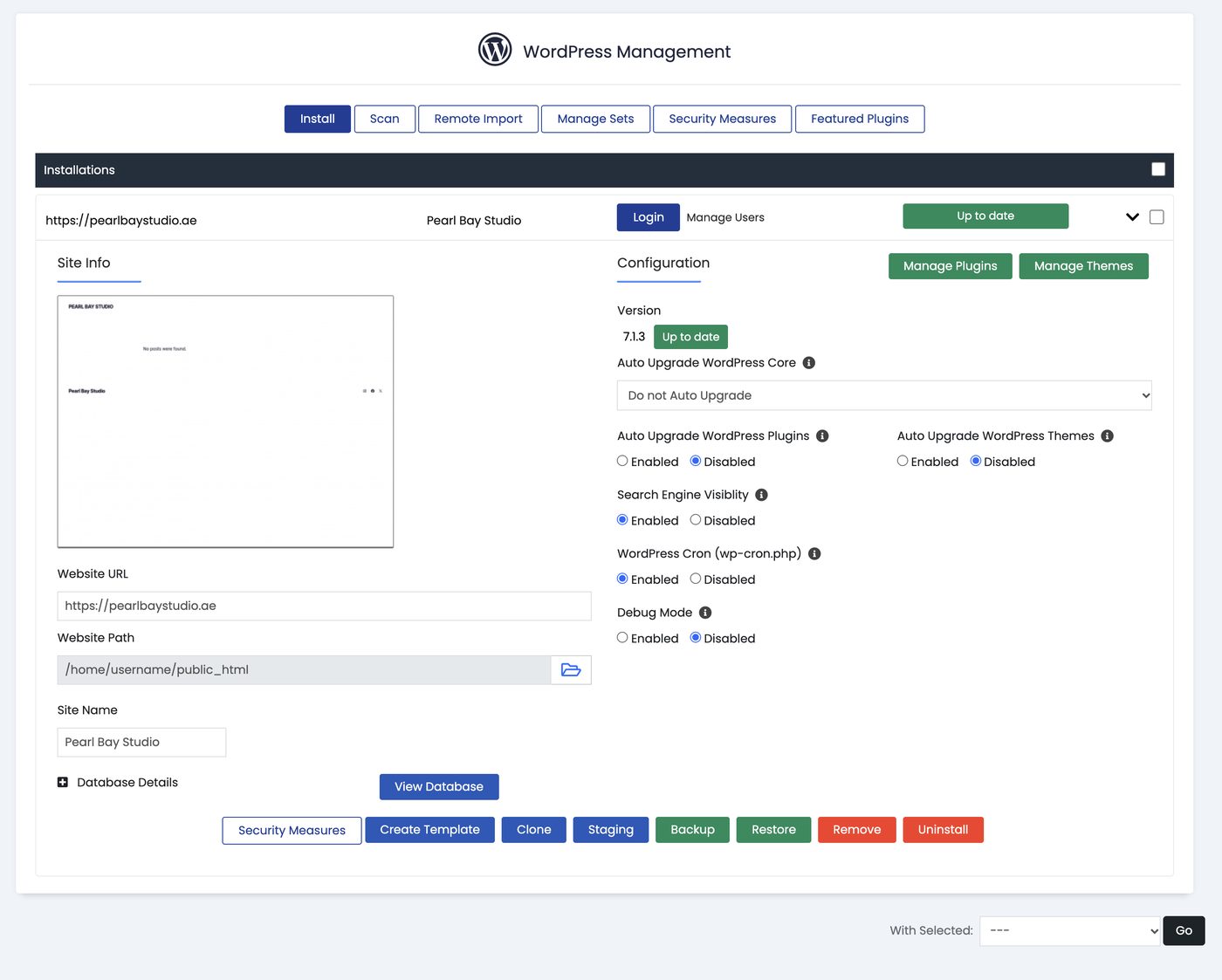
Debug Mode and other settings in WordPress Manager - Switch the plugin off
If you can reach WordPress, deactivate that plugin. If you can’t, open cPanel’s File Manager, go to
public_html/wp-content/pluginsand rename the plugin’s folder (for example add-offto the end). - Turn Debug Mode off again
Once your site works, set Debug Mode back to Disabled.
Restoring a backup from before the update is often the fastest fix. See Back up and restore your website.