
Plugins add features to your site, and themes change how it looks. Here’s how to add them, keep them updated, and remove the ones you don’t use.
Add a plugin
- Open Add Plugin
In WordPress, go to Plugins › Add Plugin.
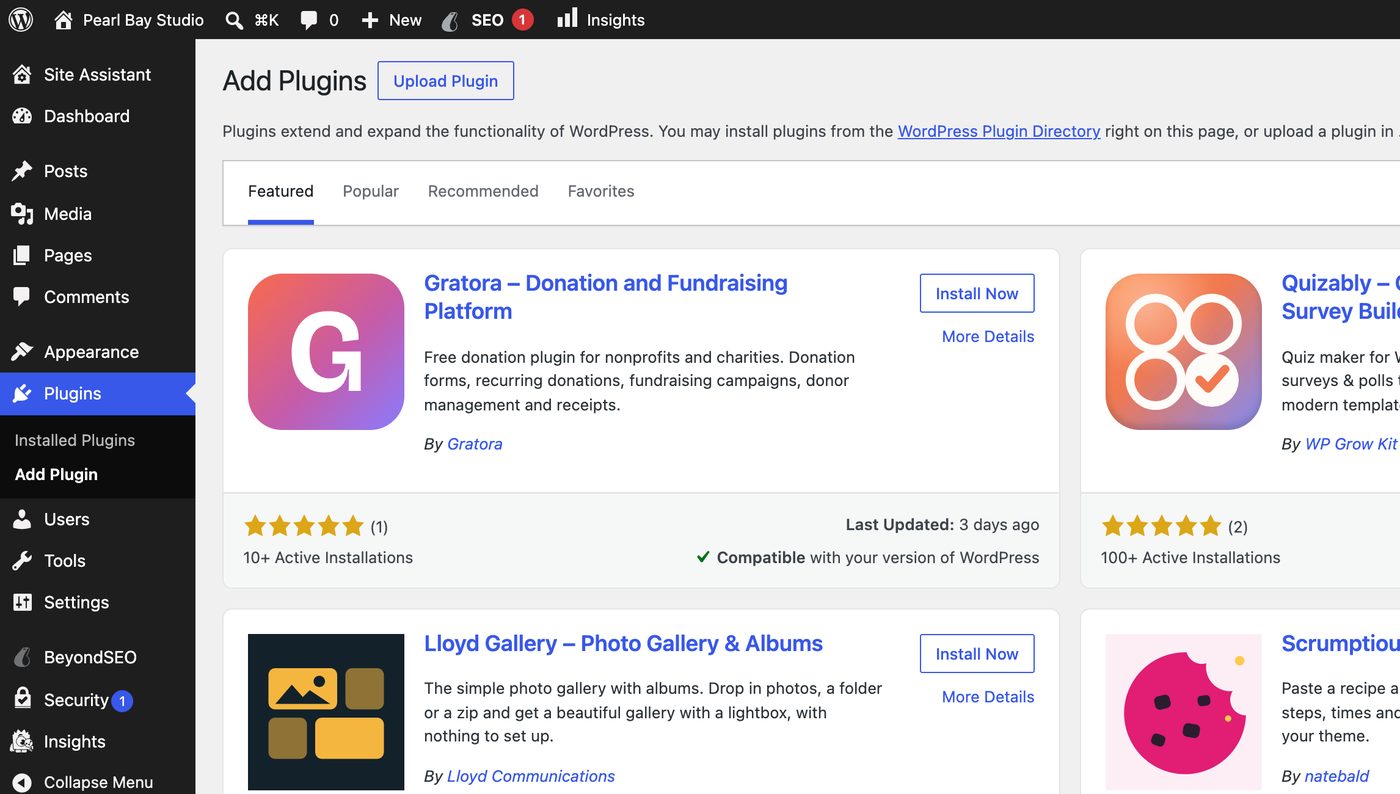
Add Plugins in WordPress - Find it and install
Search for the plugin, check its rating and when it was last updated, then click Install Now.
- Activate it
Click Activate. The plugin starts working straight away.
Update plugins, themes and WordPress
Go to Dashboard › Updates to see everything that needs updating, and update it in one place.
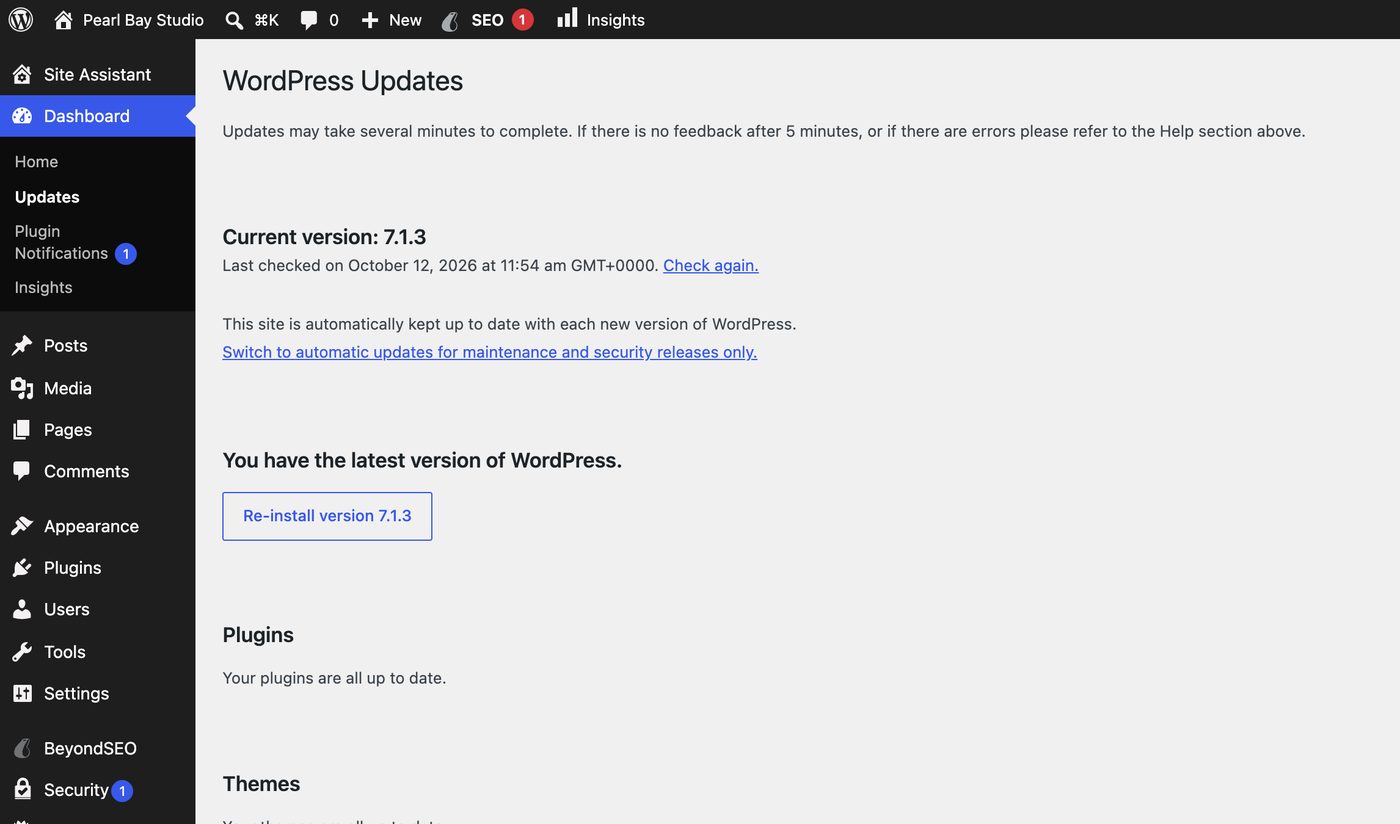
If an update breaks something, you can roll back. See Back up and restore your website.
Remove a plugin
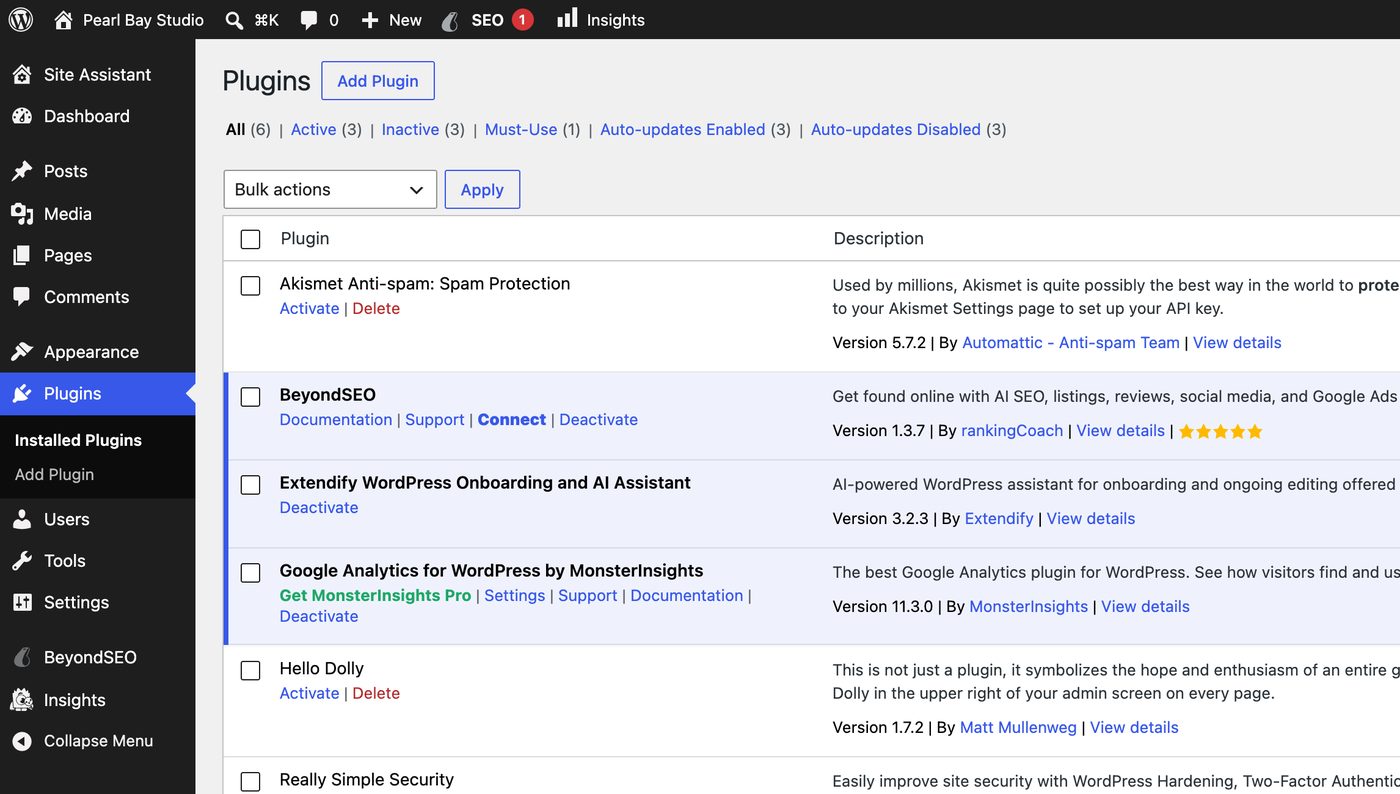
In Plugins › Installed Plugins, click Deactivate under the plugin, then Delete. Plugins you don’t use are worth removing: they still need updates and can be a way in for attackers.
Change your theme
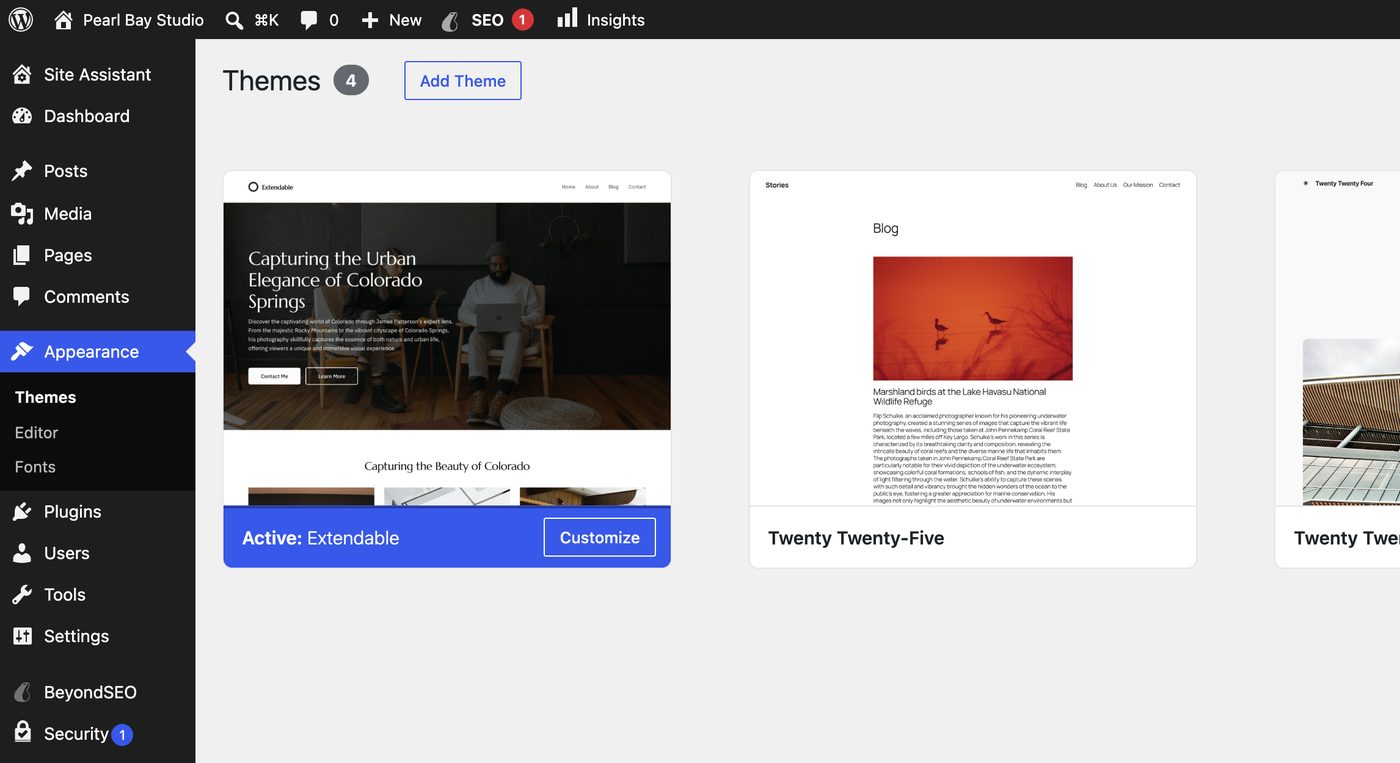
Go to Appearance › Themes, click Add Theme to find a new one, then Activate it. Keep only the themes you use, plus one default theme as a fallback.
These “nulled” copies very often contain malware. Use the official plugin directory, or buy from the developer.