
You can have WordPress running on your domain in a couple of minutes, straight from cPanel. Here’s how, and the three settings worth changing before you click Install.
Install it from cPanel
- Open WordPress Manager
In cPanel, open WordPress Manager by Softaculous and click Install.
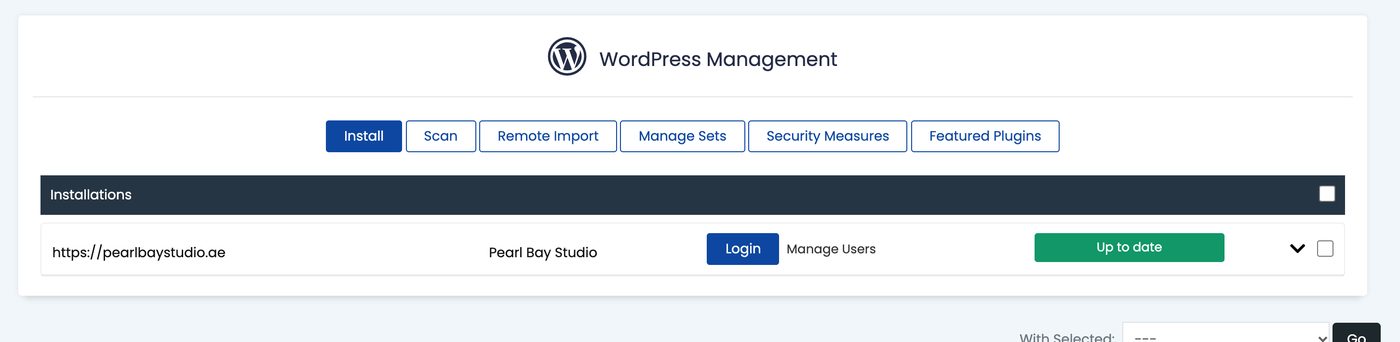
WordPress Manager in cPanel - Choose where it goes
Pick https:// and your domain. Leave “In Directory” empty to put WordPress on your main address, or type a folder name (such as
blog) to put it at yourdomain.ae/blog.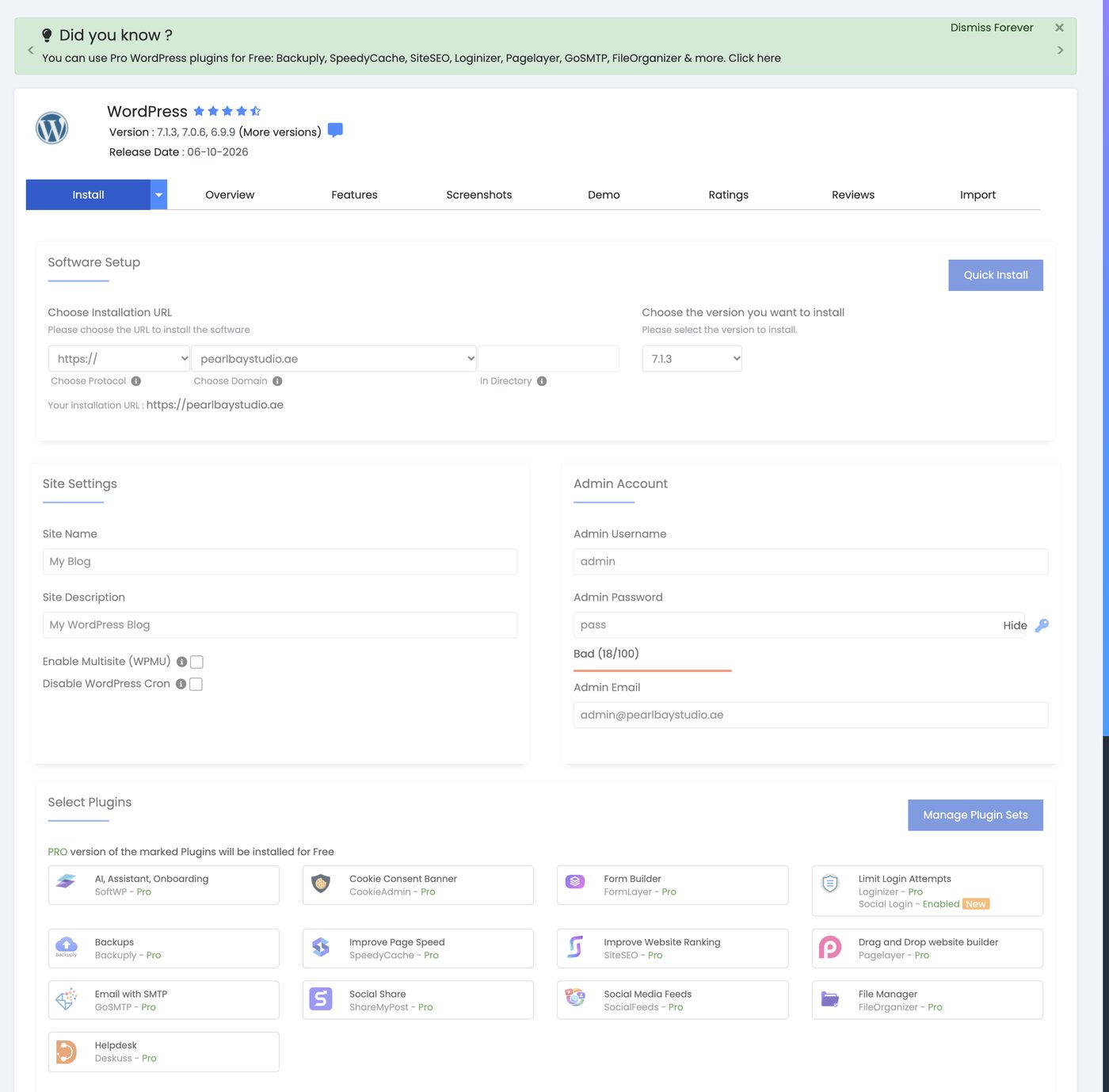
The install form, before changing the defaults - Name your site
Type your site name and a short description. You can change both later in WordPress.
- Set your admin login
Change the username from
adminto something else, and choose a strong password. The form shows how strong your password is.Change Admin Email to the email address you use for your Tasjeel.ae account. The form fills in an address at your new domain (such as [email protected]), which usually doesn’t exist yet. WordPress sends password resets and security alerts to this address, so if it’s wrong you could be locked out.
- Choose your plugins
The form ticks several extra plugins. Untick any you don’t need. You can always add them later.
- Install
Click Install. When it’s done, you’ll see links to your new site and its admin area.
They’re the first things attackers try. A unique username and a strong password make your site much safer from day one.
Common questions
My domain shows a “404 Not Found” page instead of WordPress.
Check you chose https:// and the right domain, and left “In Directory” empty. Also check your domain points to your hosting.
Can I have more than one WordPress site?
Yes, if your plan allows more websites. See Add a domain or subdomain to your hosting.